
Sign in with Microsoft 365
Use Continue with Microsoft 365, and connect Microsoft on your profile.
Applies to Owner Admin Technician Client
Continue with Microsoft 365 is on the sign-in page when Microsoft sign-in is available. There is no separate enterprise SSO button on this page.
Connecting Microsoft on your profile lets that account sign you in. It does not replace two-step sign-in for staff when your organization requires it and Microsoft did not already record a second factor.
Sign in#
- On Sign in, choose Continue with Microsoft 365.
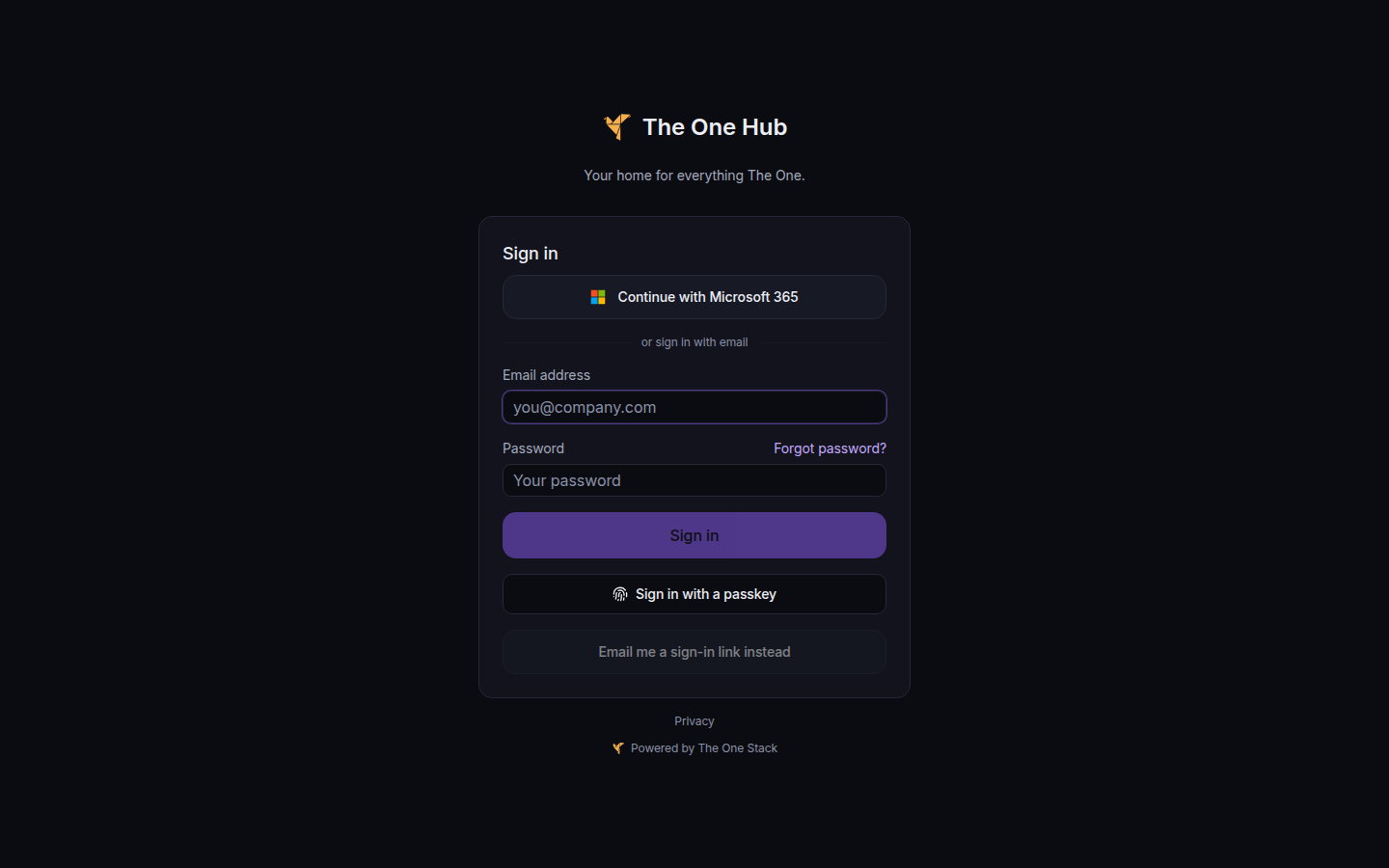
Continue with Microsoft 365, above the email form - Finish the Microsoft prompt. The Hub shows Signing in with Microsoft... while it waits.
- If the next page is Two-step sign-in, finish that step. Staff are asked when the organization requires two-factor and Microsoft did not record one.
Connect Microsoft on your profile#
- Open Profile, then Connected Accounts.
- Next to Microsoft 365, choose Connect.
- To remove it, choose Disconnect. If it is your only sign-in method, the page says This is your only way to sign in. Set a password first.
If it goes wrong#
- Microsoft sign-in failed or Microsoft sign-in did not complete. Start again from the Hub sign-in page.
- Failed to start Microsoft sign-in. Wait and try again. If Microsoft returns an address the Hub does not trust, the page says Microsoft returned an untrusted authorization URL.
- The button is not on the page. Microsoft sign-in is not available on this sign-in page. Use email and password.
- You must keep at least one sign-in method. Set a password before you disconnect Microsoft.
What's next#
Was this article helpful?