
Create your MSP account
Start a trial, name your company, and add a card that is not charged.
Applies to Owner
Create the account when your MSP is new to The One Stack. The person who finishes this becomes an owner.
The page heading is Try everything free for 14 days.
Create the account#
- Open the signup page and choose MSP / IT Service Provider under What best describes you?
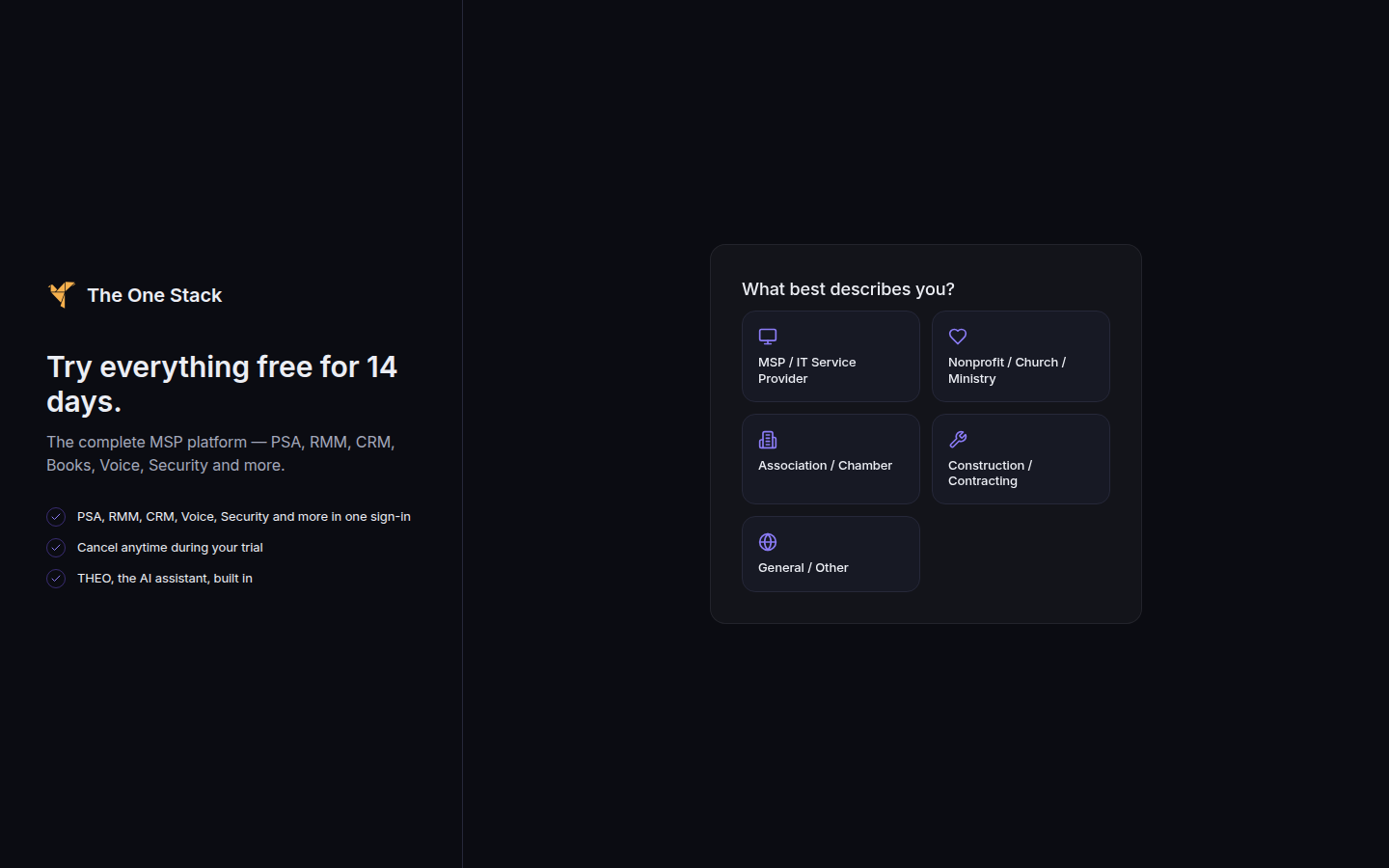
Try everything free for 14 days, beside What best describes you, including MSP / IT Service Provider - On Start your free trial, enter First name, Last name, Company name, Country of business, Work email, and Password. The password field says Min. 8 characters.Screenshot coming
The trial form, with company name, work email, and the card field - Under Country of business, choose where the business is established. The page does not guess a country.
- Enter the Credit card when the form asks for one. If the next screen is One more step: add a card for your platform bill, add the card there. The line under the heading says adding it does not charge it.
- Check the box that agrees to the terms and the privacy policy. Read Terms of Service and Privacy Policy first.
- Choose Start Free Trial.
If it goes wrong#
- Signup failed. Please try again. Wait a moment and submit again. Check that every required field is filled.
- Secure payment is temporarily unavailable. The card field cannot load. Try again later, or write to [email protected].
- The country needs more details. The form lists each missing field under the warning. Fill those in and submit again.
- This test signup link is not valid or has expired. That message is only for a test link. Use the public signup page.
What's next#
Was this article helpful?