
Set your branding
Set the portal name, logo, colors, and the sign-in background.
Applies to Owner Admin
Branding is what clients and staff see on the portal: the name, the logo, the colors, and the sign-in background. Owners and admins can save it.
Set the brand#
- Open Settings, then Branding.
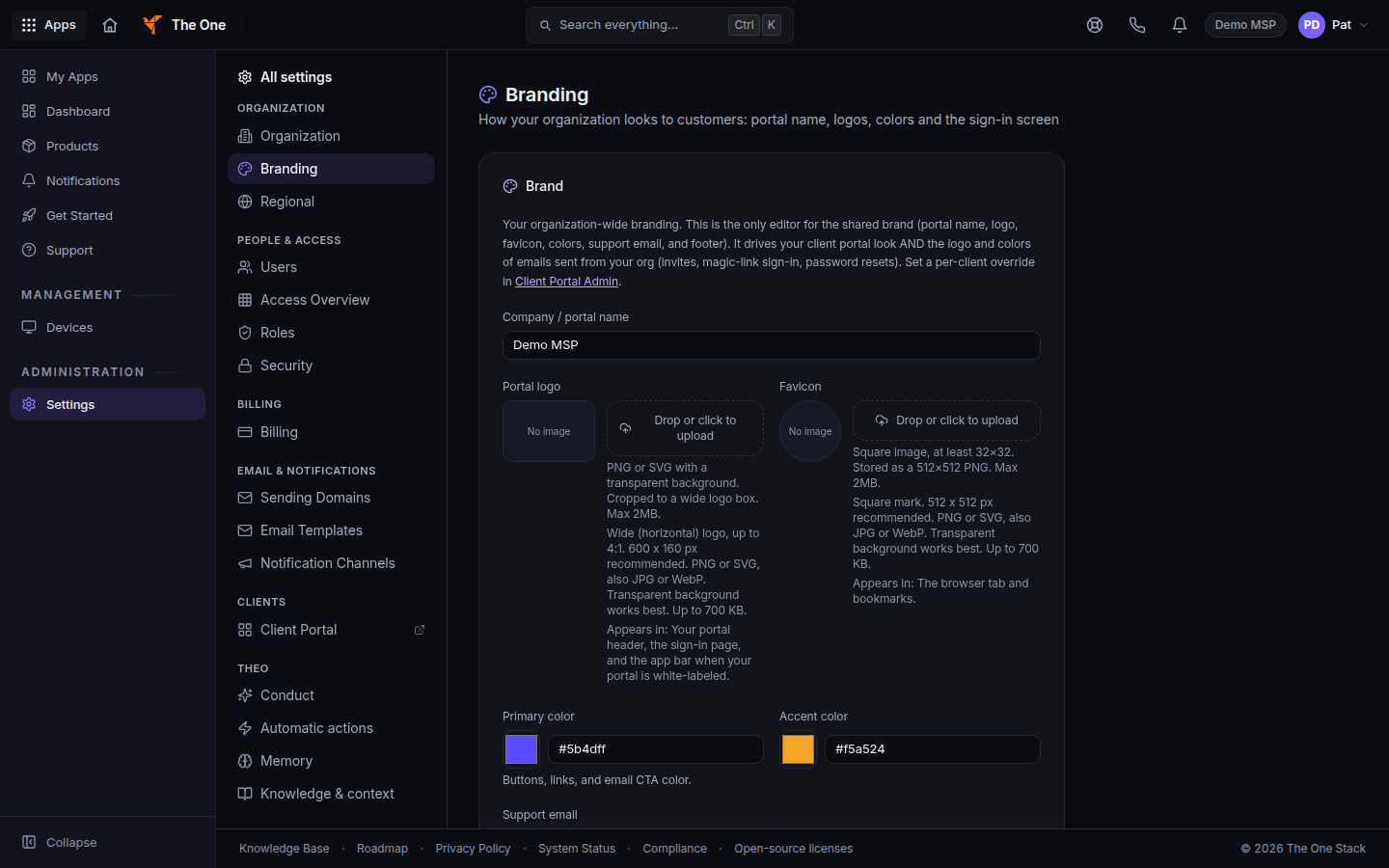
Branding, with portal name, logo, and colors - Set Company / portal name.
- Upload the logo and the favicon.
- Set Primary color and Accent color.
- Set Support email if you want a contact address on the portal.
- Under email branding, set the email logo and Email footer text.
- Set Logo icon and Login background if you use them.
- Choose Save branding.
If it goes wrong#
- Only admins and owners can update branding. You can read the page. Ask an owner or admin to save.
- The logo looks wrong on a wide header. Use a wide image for the logo and a square image for the icon.
- Clients still see the old name. Save branding, then reload the client sign-in page.
What's next#
Was this article helpful?