
Create a custom role
Owners create a role, or clone a template, and choose its permissions.
Applies to Owner
A custom role is a permission set you name. Only an owner sees New Role, Clone, edit, and delete. An admin can read Roles & Permissions and cannot save a role.
Create a role#
- Open Settings, then Roles.
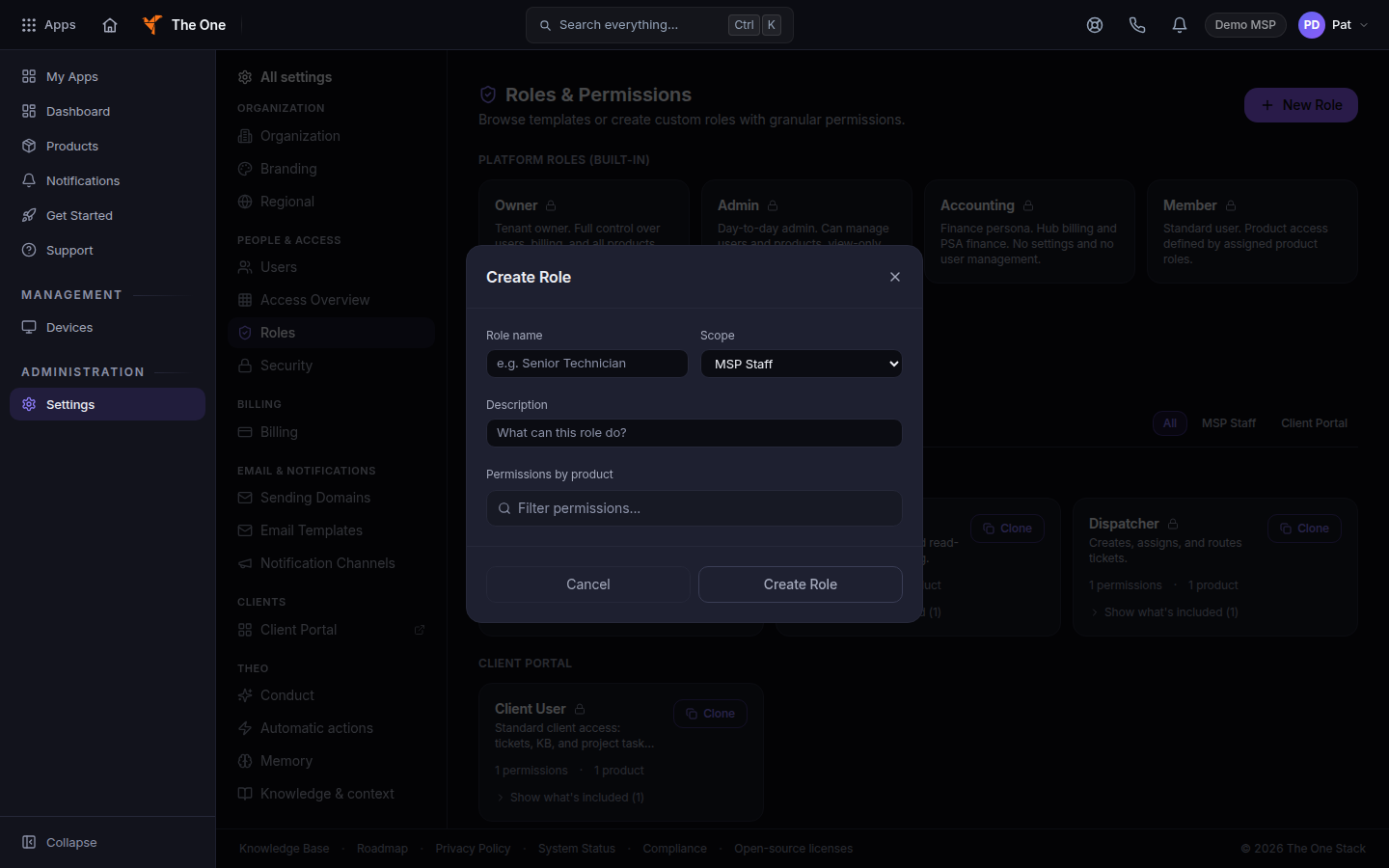
Roles and Permissions, with New Role - Choose New Role. The dialog title is Create Role.
- Enter Role name and Description. Set Scope to MSP Staff or Client Portal.
- Under Permissions by product, check the permissions this role should have.
- Choose Create Role.
To start from a template, open Templates and choose Clone on the card. To change a role you already saved, open Custom Roles and edit it. Save Changes stores the edit. The empty state says No custom roles yet and Create your first role.
If it goes wrong#
- You do not see New Role. You can read roles. Only the owner can create one. The empty custom list says Your organization owner manages custom roles.
- No permissions registered yet. The products have not registered permissions. Refresh later, then open Create Role again.
- The page says this area is for your organization's owners and admins. You are a member. Ask an owner.
What's next#
Was this article helpful?