
Connect QuickBooks Online
Connect QuickBooks, then send or mark an invoice sent so it can be pushed.
Applies to Admin
QuickBooks Online receives invoices from PSA and can sync customers. Connecting is Connect QBO. An invoice is pushed when you send it, or when you mark it sent without email.
Sync Invoices Now with nothing selected does not push. It tells you to pick invoices elsewhere. Use Send Invoice or Mark as sent (no email) on the invoice.
Connect#
- Open Integrate, then Integrations, then QuickBooks Online.
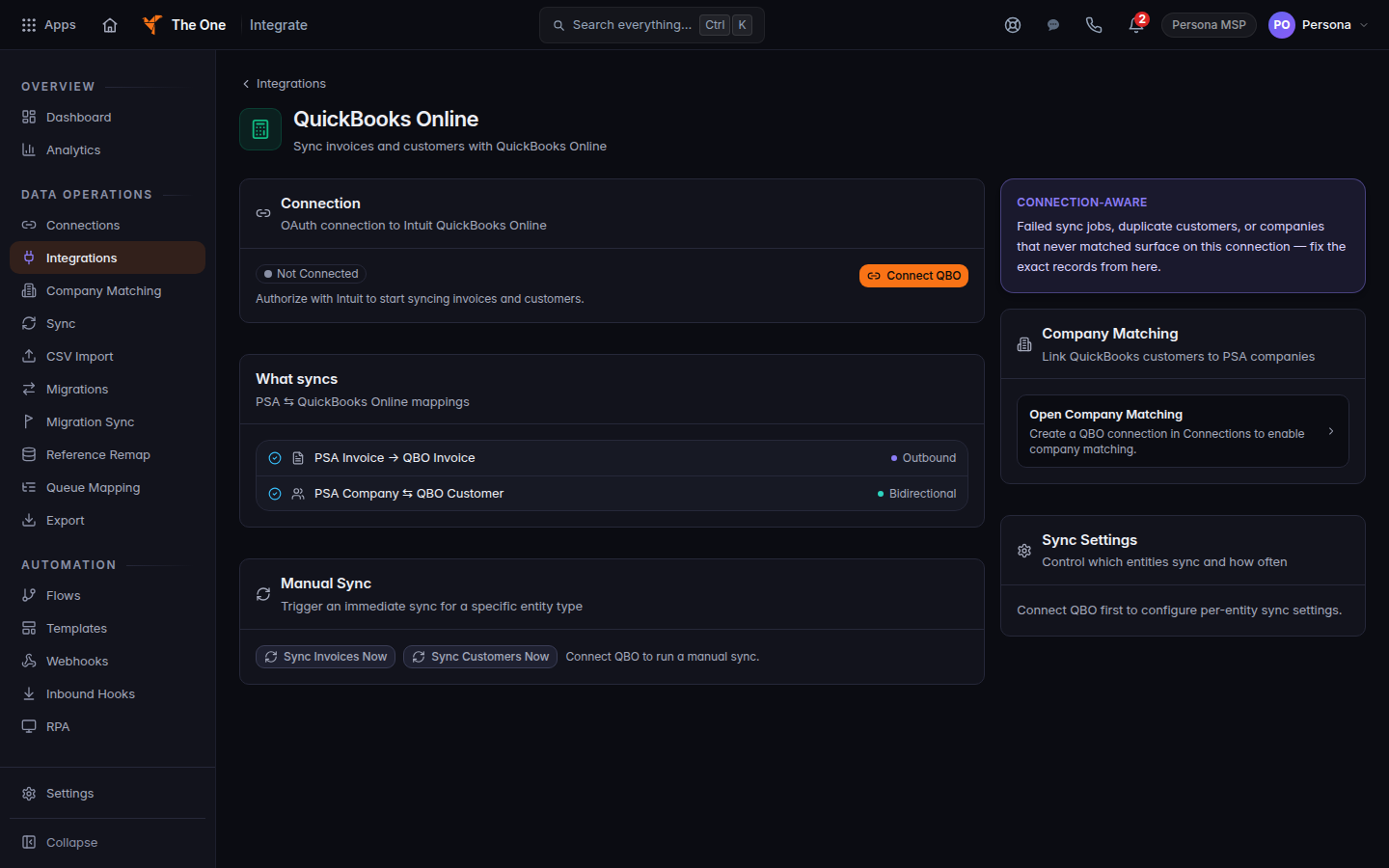
QuickBooks Online, not connected, with Connect QBO - Choose Connect QBO and approve access at Intuit.
- When the status is connected, What syncs shows PSA Invoice → QBO Invoice as outbound and PSA Company with QBO Customer as both directions.
Push an invoice#
- Open the invoice in PSA.
- Choose Send Invoice and send it, or choose Mark as sent (no email) when you are not emailing the client.Screenshot coming
Invoice with Send Invoice and Mark as sent - That send asks Integrate to push the invoice. It does not block the send if QuickBooks is slow.
Sync Customers Now pulls customers in. Use it when you want customer records from QuickBooks, not when you want to push one invoice.
If it goes wrong#
- QuickBooks authorization failed or Couldn't start QuickBooks authorization. Run Connect QBO again.
- Connect QuickBooks first. You clicked a sync before the connection was active.
- Select invoices to push from the Invoices list, then use "Push to QBO". Sync Invoices Now had no invoices selected. The invoice screen uses Send Invoice or Mark as sent (no email), not a separate push button.
- Could not load QuickBooks status. Refresh the QuickBooks page.
- Disconnect and stop syncing? Choose Yes, disconnect only when you mean to stop. Cancel leaves it connected.
What's next#
Was this article helpful?