
Create a signing template
Build a reusable template from scratch, from a PDF, or from a Word document, then use it on an envelope.
Applies to Technician Admin
A template is a document you send more than once. You place the fields once. Each envelope starts from that layout.
Templates are for staff in CRM. The client portal does not include templates.
Create one#
- Open CRM, then E-Sign, then Templates.
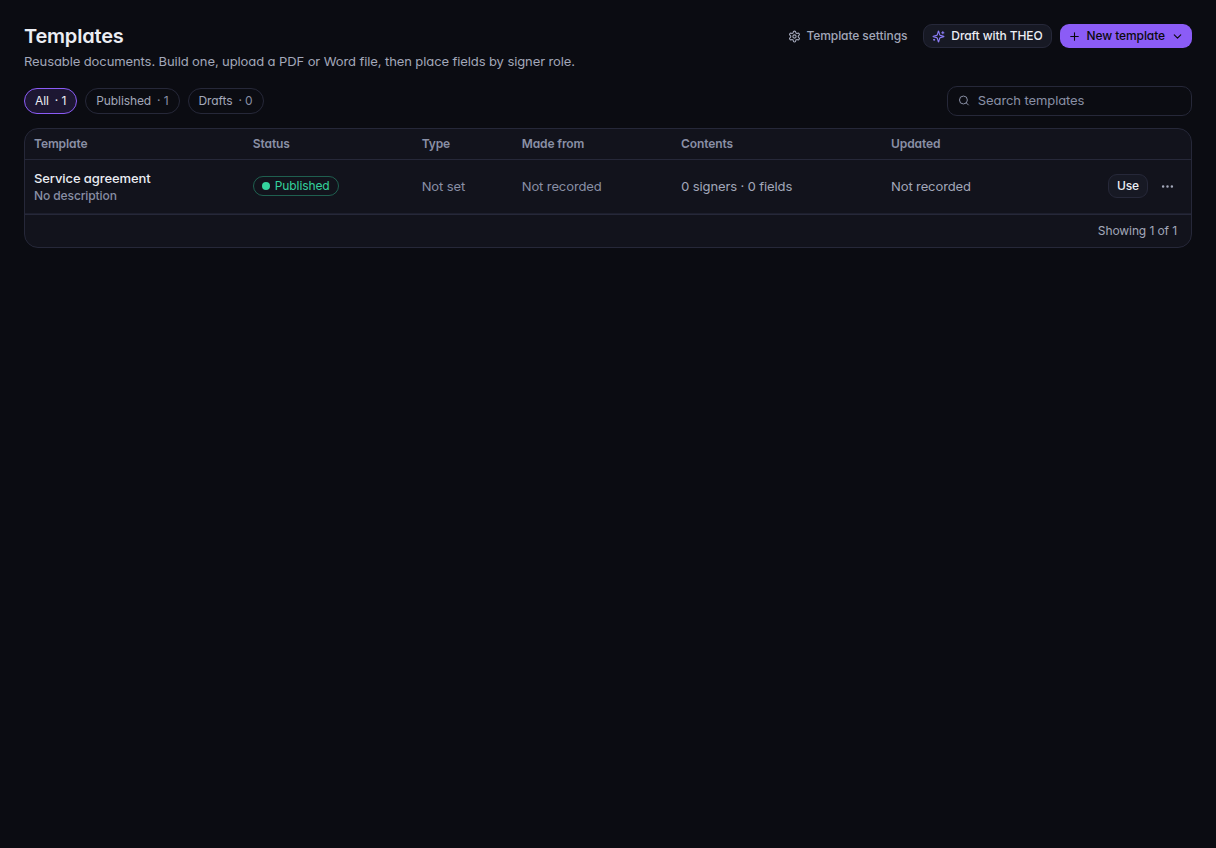
Templates, with New template and a published row - Choose New template.
- Choose Build from scratch, Upload a PDF, or Upload a Word document. On a phone, the same menu can include Draft with THEO.
- Name the template and place the fields. See Place signature fields.
- Publish it when it should appear for new envelopes. The filters are All, Published, Drafts, and Archived. The status on a row is Published, Draft, or Archived.
Use it#
On the row, Use for an envelope starts a send. Edit, Duplicate, and Delete… are the other row actions.
Your templates on What are you sending? lists the published templates. See Send a document for signature.
If it goes wrong#
- New template is missing. Your role cannot change templates.
- The template stays under Drafts. It is not offered as a published template until you publish it. Check the Drafts filter.
- Delete… asks you to confirm. A deleted template is not on new envelopes. Envelopes already sent keep their own copy.
What's next#
Was this article helpful?