
Read an envelope status
The status pill on an envelope says whether it is a draft, out for signature, finished, declined, expired, or voided.
Applies to Technician Admin
The status is the pill on the envelope. Use it to see who the document is waiting on, and whether you can still remind or void it.
Read the list#
- Open Envelopes.
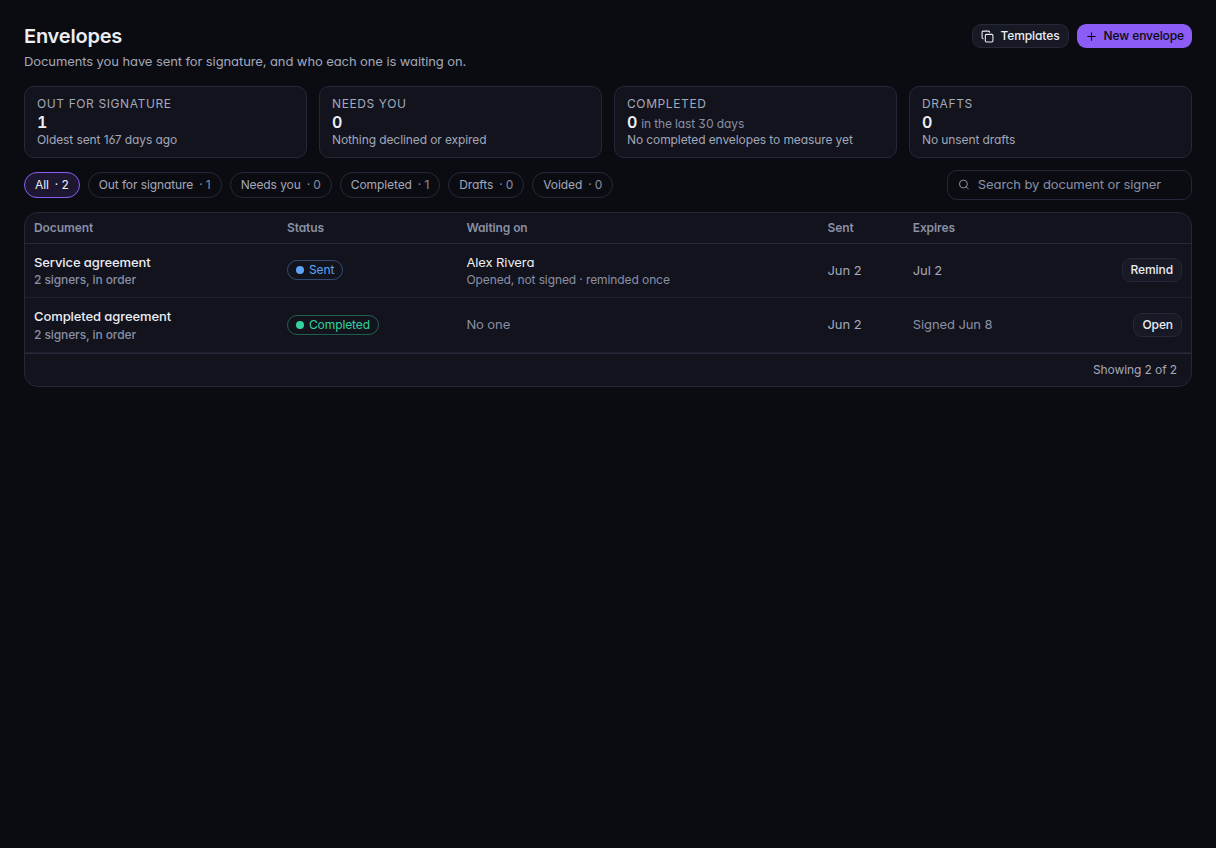
Envelopes, with Sent, Completed, and the status filters - Use the filters All, Out for signature, Needs you, Completed, Drafts, and Voided.
- Read the pill on the row.
| Pill | Meaning |
|---|---|
| Draft | Not sent. You can still edit it and choose Send for signature. |
| Awaiting approval | Sent for an internal approval before it goes out. It is listed under Needs you. |
| Sent | Out for signature. Nobody has finished yet. |
| Partly signed, or a count such as 1 of 2 signed | At least one person has signed, and someone has not. |
| Completed | Everyone who had to sign has signed. |
| Declined | Someone declined. It is listed under Needs you. |
| Expired | The date on the envelope passed. It is listed under Needs you. |
| Voided | You canceled it. Signers can no longer finish it. |
The columns are Document, Status, Waiting on, Sent, and Expires.
On the envelope, each person shows a line such as Signed, Declined, Opened, not signed, Not opened yet, or Waiting for turn.
Void one#
- Open an envelope that is out for signature or Awaiting approval.
- Choose Void…
- Confirm Void this envelope? Reason (optional, kept with the envelope) is stored with it.
- Choose Void envelope.
If it goes wrong#
- The envelopes could not be shown. Refresh Envelopes. Nothing was voided by that failure.
- This envelope could not be shown. Open Envelopes and pick the row again.
- This link has no envelope in it. The address is incomplete. Start from Envelopes.
What's next#
Was this article helpful?