
Sign a document you were sent
Open the link in the email, verify if asked, agree to sign electronically, complete each field, and finish.
Applies to Client
You sign in the browser from the link you were sent. You do not need a staff login. Nothing is signed until you press Finish signing at the end. You can decline, or stop and use the same link later.
Sign it#
- Open the link. The page may say Loading your document…
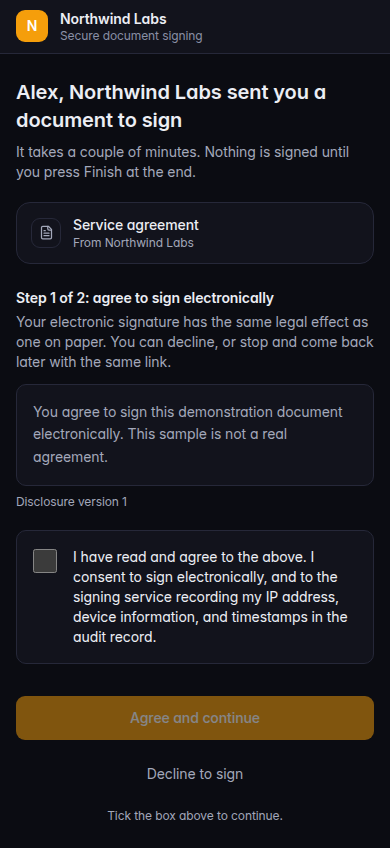
Agree to sign electronically, before the document opens - If the page says Verify it's you, enter the 6-digit code and choose Verify. Resend code sends another code. The code goes to the email or phone the page names.
- If the page says Enter your access code, enter the code the sender gave you. The line under the heading says the sender protected this document with an access code.
- Read Step 1 of 2: agree to sign electronically. The heading includes the sender's name and says they sent you a document to sign. The document title is shown when there is one.
- Tick I have read and agree to the above. The rest of that line is your consent to sign electronically and to the signing record. Tick the box above to continue. is shown until you do.
- Choose Agree and continue. Decline to sign stops here.
- On Sign this document, the panel says Signing as and your name. Complete each required field. Next names the next field, such as Next: Your signature.
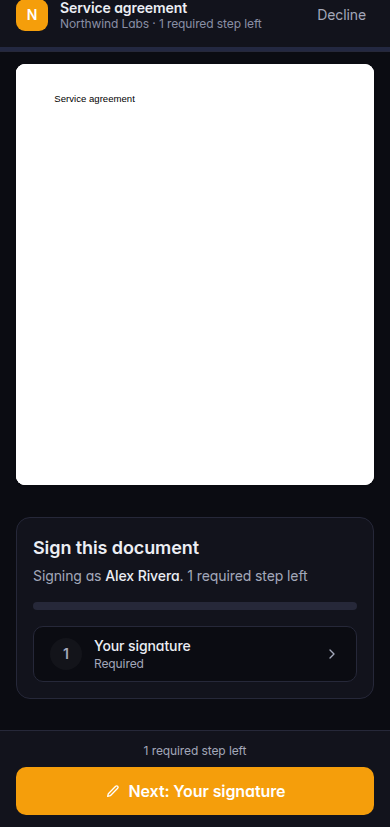
Sign this document, with Next: Your signature - For a signature, use Draw or Type, then Apply. Clear resets the box.
- When the panel says Everything is filled in. Review, then finish., choose Finish signing. While it saves, the button reads Finishing….
The last screen says You signed it. Thank you. and includes your name when the sender has it. What happens next explains the rest.
If you are not first#
If people sign In order and it is not your turn, the page says Waiting on and the other person's name to sign first. Keep the link. It works when it is your turn.
If it goes wrong#
- Please enter the 6-digit code. The code field needs all six digits.
- Please draw or type your signature first. Choose Apply after you draw or type.
- This box must be checked to continue. Tick the agreement box on the document.
- Please choose an option. Open the dropdown and pick one.
- This field is required. Fill the field Next is pointing at.
- Could not record your consent. Please try again. Choose Agree and continue again. You are not signed yet.
- This signing link is invalid or has expired. Ask the sender for a new link. Do not forward an old one.
- This signing link is no longer valid. The envelope was finished, declined, voided, or expired. Ask the sender.
- Could not load this signing session. Refresh the link. If it stays, ask the sender to confirm the envelope is still out for signature.
- You declined this document. That decision is recorded. Ask the sender if you need a new copy.
To decline after you have started, choose Decline, confirm Decline to sign?, add Reason (optional), and choose Decline document. The sender sees the decline when they open the envelope. The page does not say they are emailed at that moment.
What's next#
Was this article helpful?