
Send a document for signature
From Envelopes, start a new envelope, add people and fields, then choose Send for signature.
Applies to Technician Admin
Send an envelope when someone needs to sign. Staff do this in CRM, under E-Sign, then Envelopes.
Send one#
- Open CRM, then E-Sign, then Envelopes.
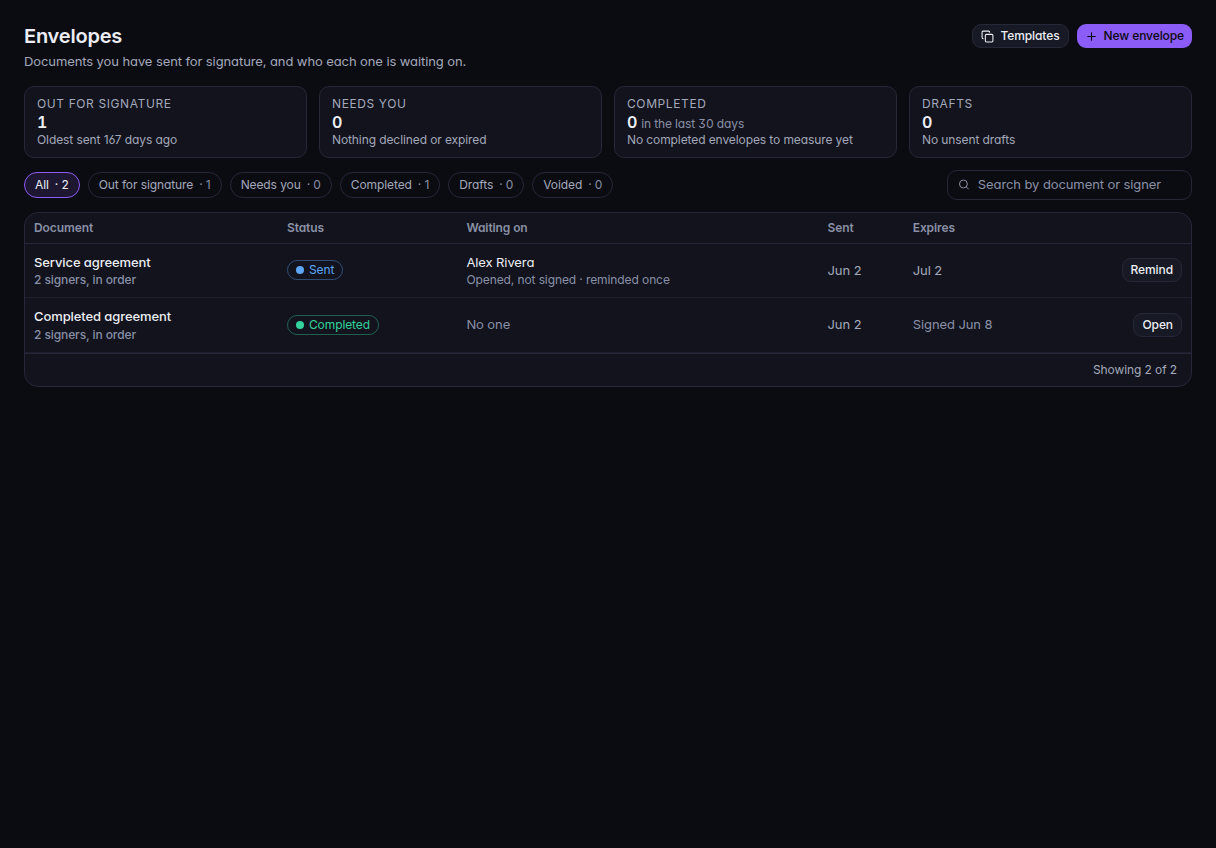
Envelopes, with New envelope and Remind - Choose New envelope. The first step is Document, and the heading is What are you sending?
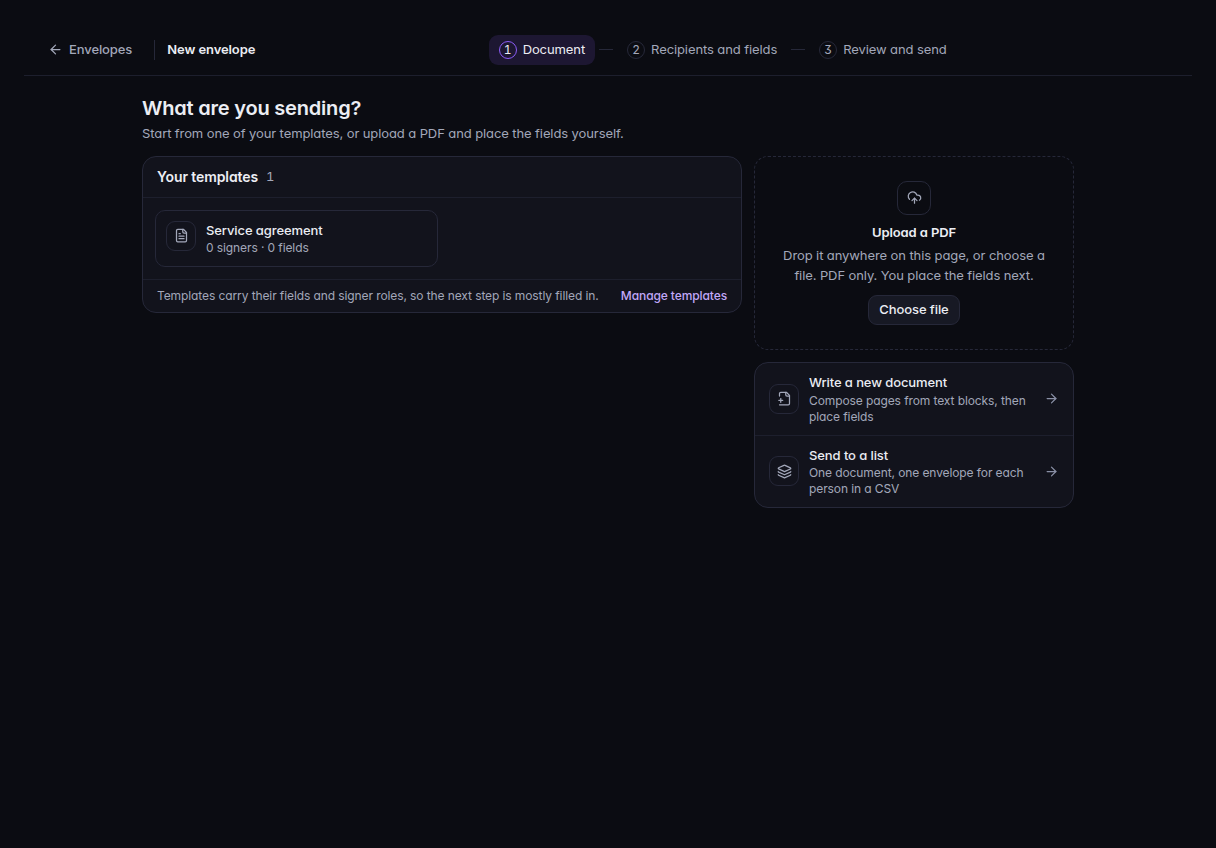
What are you sending, with Your templates and Upload a PDF - Start from Your templates, or Upload a PDF. Choose file and Drop the PDF here are the upload. If this is the first time, the page also offers Upload a PDF, Start a blank document, and Use a starter template.
- Continue to Recipients and fields. Add each person and place the fields. See Place signature fields.
- Open Review and send. Check In order or All at once. In order waits for one person before the next. All at once sends to everyone together.
- Choose Send for signature. While it sends, the button reads Sending….
The review step shows when the envelope expires. Change default is there for an admin who can open expiration settings.
If it goes wrong#
- No templates yet. Upload a PDF, or create a template first. See Create a signing template.
- The PDF was not uploaded. Nothing was saved. Choose the file again.
- E-Sign is not in the CRM menu. The organization does not include E-Sign. Ask an owner.
- The send control is missing. Your role can view E-Sign and cannot change it.
What's next#
Was this article helpful?