
Send a document from the client portal
A company administrator uploads a PDF, adds the people who sign, and sends. Each person gets their own link.
Applies to Client
Your company's E-Sign app sends a PDF for signature. It is for documents your company sends. It is not the list of documents your IT provider sent you to sign. Those arrive by email. See Sign a document you were sent.
A company administrator can send, remind, and cancel. Someone who can open the app and is not an administrator can look.
Send one#
- Open E-Sign. The line under the title says these are documents your company has sent, and who each one is waiting on.
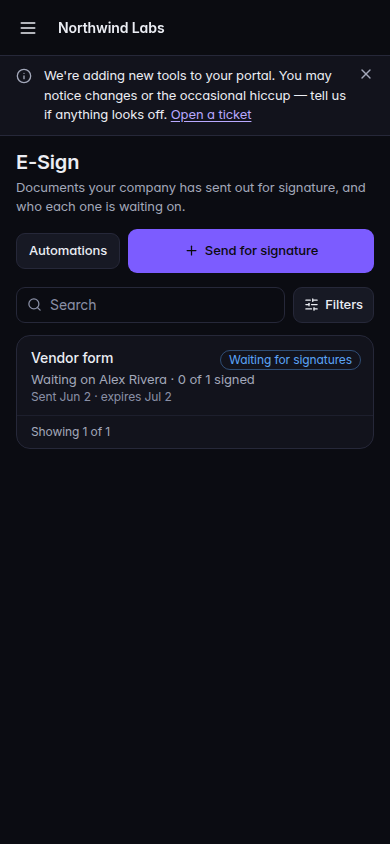
E-Sign in the portal, with Send for signature - Choose Send for signature.
- Under The document, choose Choose a PDF. The file must be a PDF, up to 10 MB. Enter Title. Message to the signers (optional) is included in what they see.
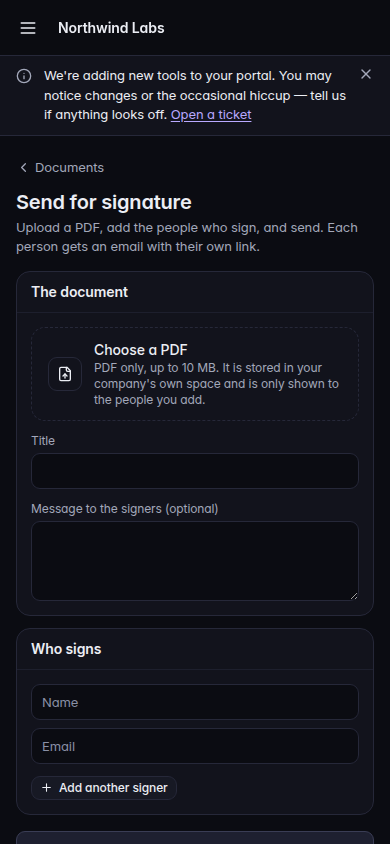
Send for signature, with Choose a PDF, Title, and Who signs - Under Who signs, enter Name and Email for each person. Add another signer adds a row. Each person needs a name and a different, valid email address.
- Choose Send, we place the signature lines to put a signature line and a date for each person at the bottom of the last page.
- Or choose Next: place fields and place signature, date, initials, or text yourself. Then choose Send for signature. Place them for me and send does the placement for you. Place them for me clears fields you added.
The page says the request expires 30 days after you send it. You can cancel it earlier.
After it is sent#
- Send a reminder emails the people who still need to sign, when a reminder is allowed.
- Cancel this request… opens Cancel this request? Keep it leaves the request. Cancel request stops it. A canceled document can show Canceled and the reason.
- Download signed copy appears when everyone has signed. See Download a signed copy.
The list filters include Waiting, Signed, Not sent, Declined or expired, and Canceled.
If it goes wrong#
- No documents sent yet. Nothing has been sent. Use Send for signature.
- Your documents could not be shown. Refresh the page. The note says the documents are safe when the service did not answer.
- That file is too large. The message names the size and says the limit is 10 MB. Choose a smaller PDF.
- Only an administrator of your company can send, cancel or remind. Ask one of them to do this. You can still open documents you are allowed to see.
- Each signer needs a name and a different, valid email address. Fix the row the form is pointing at.
What's next#
Was this article helpful?