
Open Messages
Open team chat on the web. Messages is a beta invite.
Applies to Technician
Open Messages when you need team chat on the web. It is a beta invite. If your organization was not invited, the app is not there.
The desktop app and the mobile app are unfinished. Do not send someone to those apps and expect the same product. See Messages on desktop and mobile.
Open a conversation#
- Open Messages. The list groups Channels, Direct messages, and Text messages.
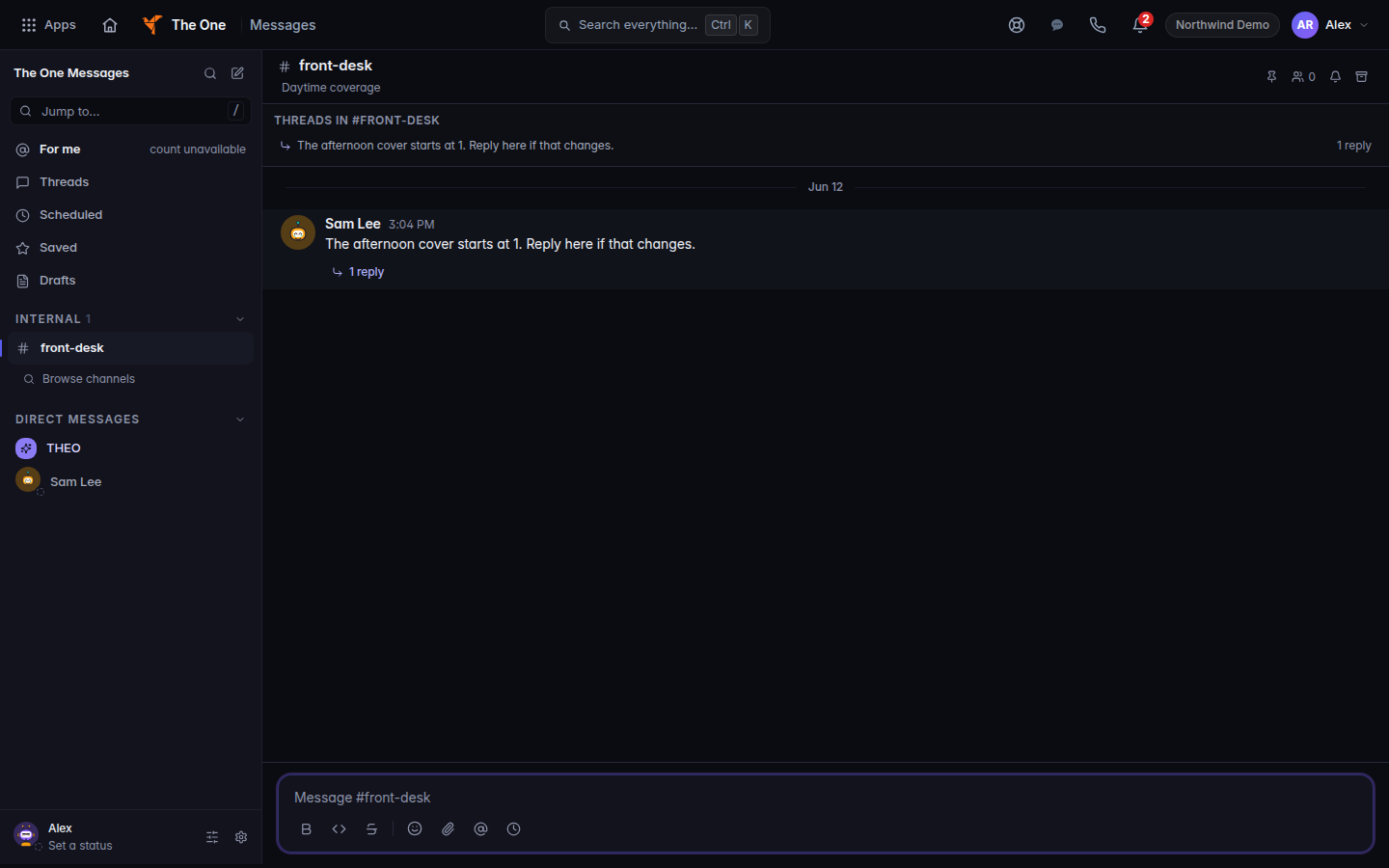
Messages on the web, with the conversation list - Choose a conversation. Or choose New message to start a direct message, or New channel to create a channel.
- Type in the composer. The placeholder is Message plus the channel name. Choose Send message.
Jump to… filters the list. Browse channels shows channels you can join.
If the workspace is empty, the home pane offers New message, Mentions, New channel, and Message THEO.
If it goes wrong#
- Messages is missing. Your organization was not invited, or your role cannot open it. Ask an admin.
- Messaging is paused for maintenance. The page says your channels and history are safe and to check back in a few minutes.
- Couldn't load your conversations or Couldn't load your channels. Reload. Nothing was deleted.
- A client is looking for this inbox. Messages is not available to clients yet. See Team chat in the client portal.
What's next#
Was this article helpful?