
Set your message preferences
Set your own text size, channel alerts, keyword alerts, and quiet hours.
Applies to Technician
Preferences are yours. The subtitle is Yours alone. They follow you to every device. They do not change the workspace default. Admins set that on Change Messaging settings.
Set them#
- Open Your preferences.
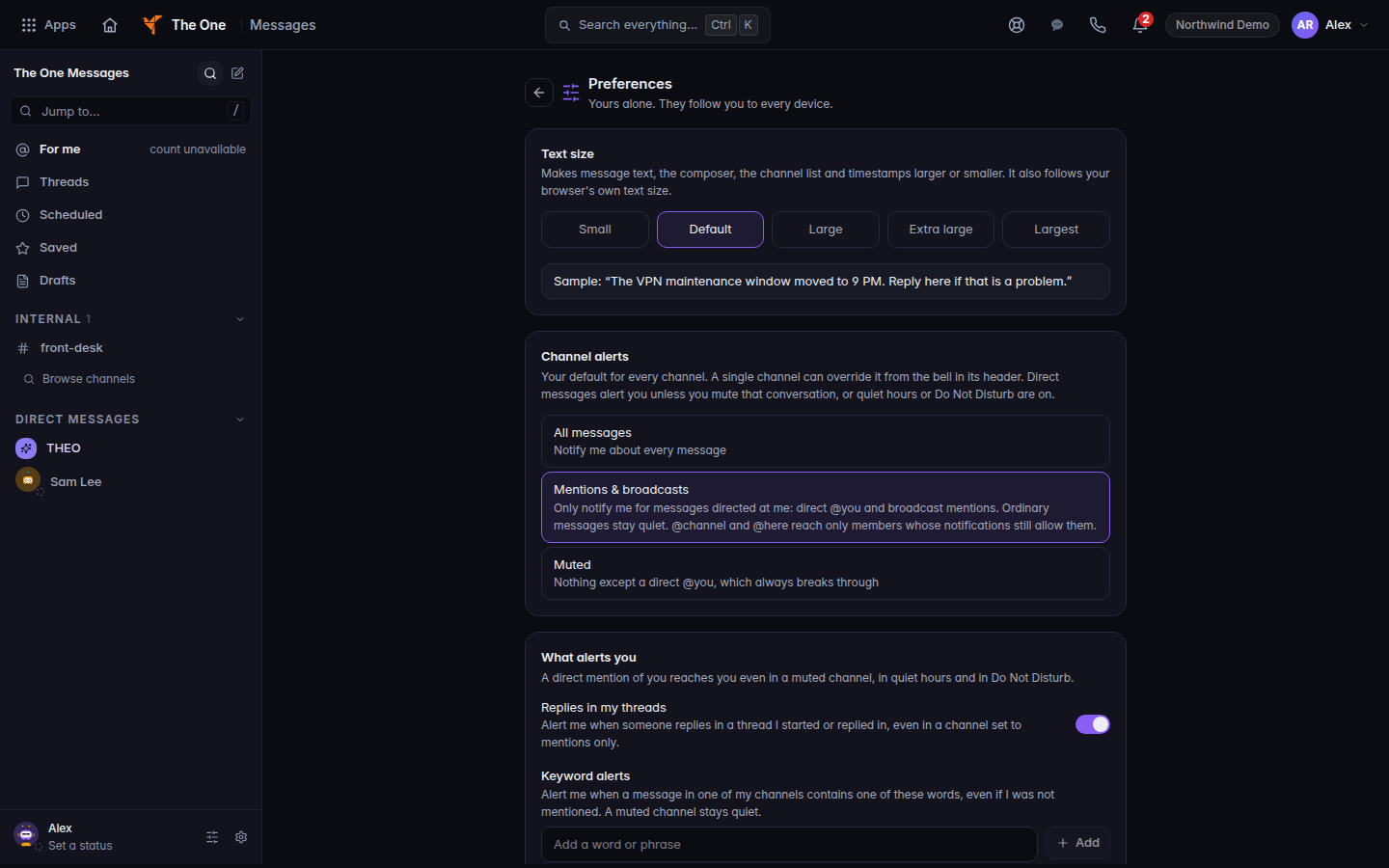
Preferences, with text size and channel alerts - Under Text size, pick a size. It also follows your browser's text size.
- Under Channel alerts, pick All messages, Mentions & broadcasts, or Muted. The card says this is your default for every channel. One channel can override it from the bell in that channel's header. Direct messages alert you unless you mute that conversation, or quiet hours or Do Not Disturb are on.
- Under Keyword alerts, add words that should notify you.
- Under Quiet hours, set the weekly times when Messages will not alert your phone or bump your unread badge. A direct mention of you still comes through. Messages wait for you.
A failed save says That didn't save. Your default is unchanged. or That did not save. Your setting is unchanged. Try again.
If it goes wrong#
- Your preferences did not load, so the values below are not yours. Reload. Do not save over a form that is not yours.
- Your default level didn't load. The channel-alert choices are not ready. Reload.
- The mobile app will not open settings. Messages settings are not in the mobile app. An admin manages workspace settings on the web, and you manage Preferences on the web. See Messages on desktop and mobile.
What's next#
Was this article helpful?