
Voice settings
Set the outbound caller ID and in-app calling on the customer Settings page.
Applies to Admin
Settings in the customer's Voice menu is short on purpose. The description is Caller ID and in-app calling for your organization. Hours, holiday lists, and the AI receptionist are not edited as fields on this form.
Change what this page controls#
- Open Settings.
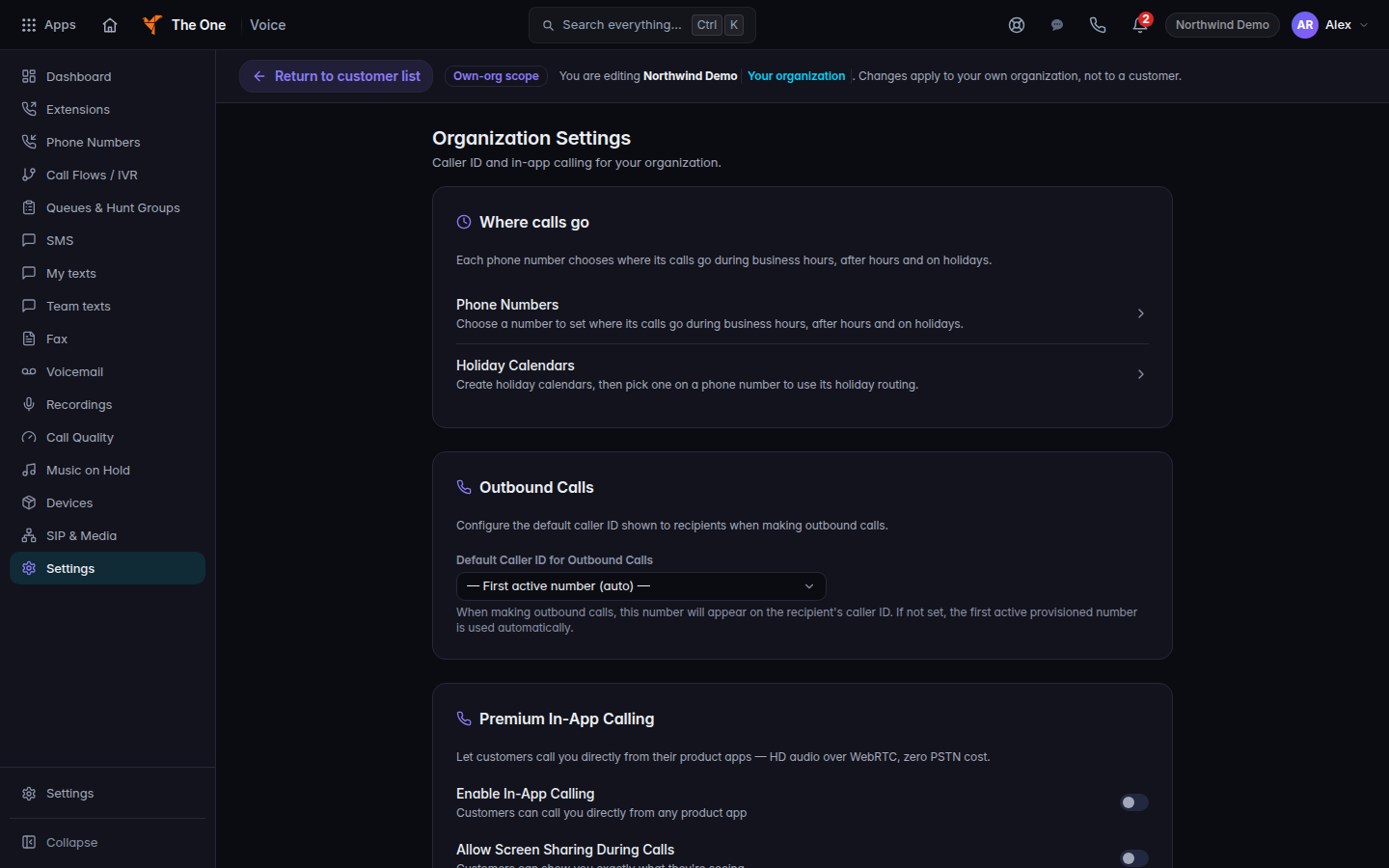
Voice settings, with Where calls go and outbound caller ID - Under Where calls go, choose Phone Numbers to set business hours, after hours, and holidays on a number. See Set business hours on a number.
- Choose Holiday Calendars to create a calendar, then pick it on a number.
- Under Outbound Calls, set Default Caller ID for Outbound Calls. — First active number (auto) — keeps the first active number.
- Under Premium In-App Calling, use Enable In-App Calling and Allow Screen Sharing During Calls only if this customer should use in-app calls. Priority Routing marks a call from a VIP contact in the app as priority and tells the caller they are being connected to priority support. It does not pick a different agent. Agent Notification Message is the note agents see for those calls.
- Save. If the save fails, the page says Could not save call settings or Could not update caller ID. Nothing changed.
SIP & Media is a separate menu item for SIP. Open it only when you are changing media settings your lead already uses.
If it goes wrong#
- Settings opens Dashboard. You are not an organization admin.
- You expected a business-hours grid. It is not on this page. Use the number.
- Priority Routing did not reorder the queue. It only marks the call and plays that notice. It does not skip the queue.
What's next#
Was this article helpful?