
Register a desk phone
Register a desk phone, an ATA, or a gateway on Devices.
Applies to Admin
Devices is where you register hardware. The page title is Desk Phones. The description is Register and manage SIP hardphones, ATAs, and gateways.
The softphone is not on this page. Staff use the Phone button in the Hub bar. See Use the Phone button. A person's phone in the client portal is not available yet. See Your phone in the Client Portal.
Register the device#
- Open Devices.
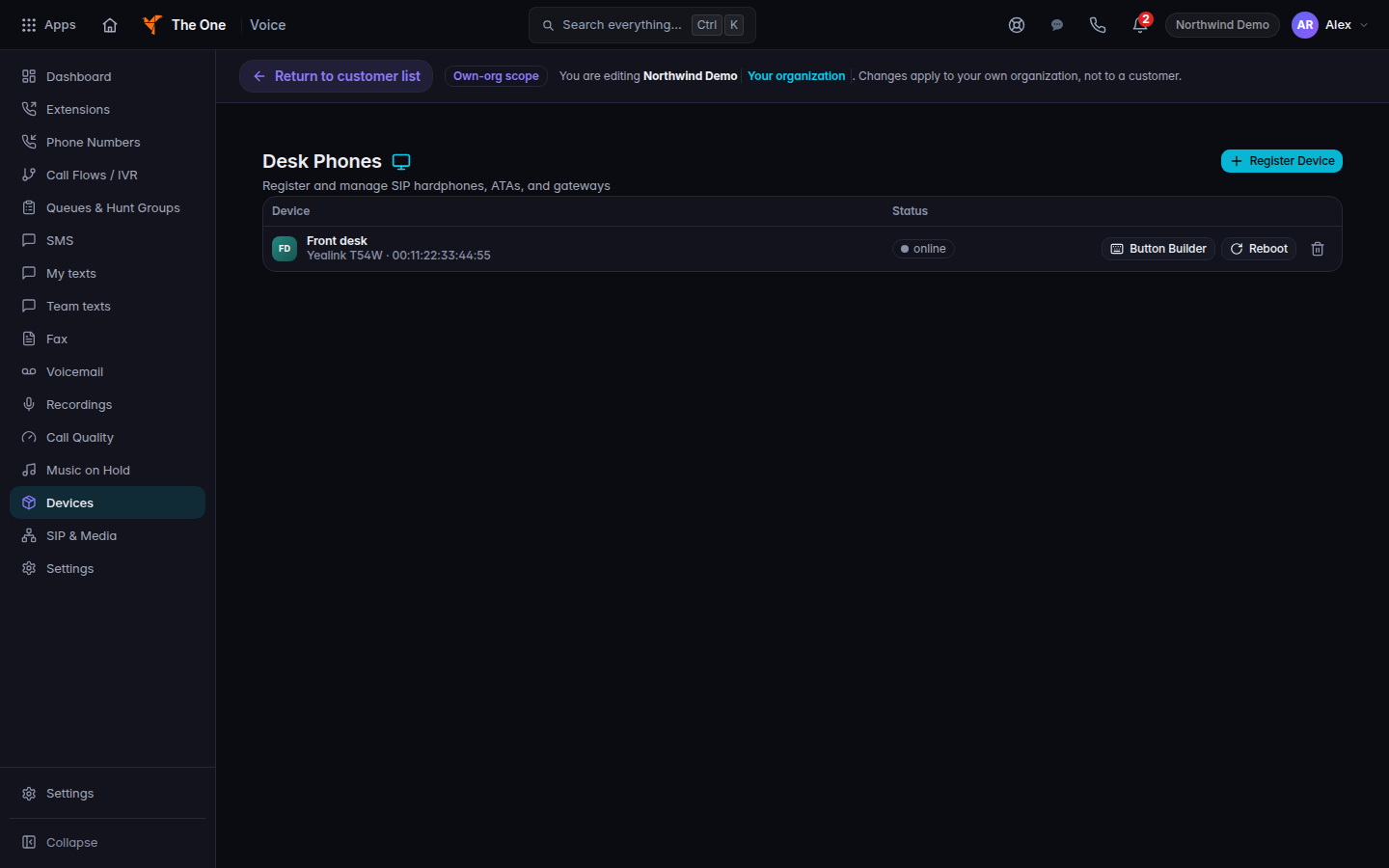
Desk Phones, with Register Device - Choose Register Device. An empty list says No devices registered. The action is Register a Device.
- Fill MAC Address, Vendor, Model, and Label. Vendor is Yealink, Poly, Grandstream, or Other.
- Set Device Type to Phone, ATA (Fax Adapter), or Gateway. An ATA also asks for Fax Protocol: T.38 (Recommended) or G.711 Pass-through, and Error Correction Mode (ECM).
- Save the dialog.
On a row you can open Button Builder, Reboot, and Log In or Log Out.
If it goes wrong#
- The phone never comes online. Check the MAC address against the label on the phone, and that the phone can reach the network your lead specified.
- Register Device is missing. Your role cannot provision devices. Ask a Voice admin.
- You wanted a softphone. Stay on this page only for hardware. Use the Hub bar Phone button for the staff softphone.
What's next#
Was this article helpful?