
Set up text messaging
Use the SMS page to see which numbers can text, and where 10DLC and consent stand.
Applies to Admin
Text messaging (SMS) is held for client companies and is not turned on for them yet.
Text messaging in Voice is three different screens.
- SMS is the admin page: numbers, routing, 10DLC, and consent.
- My texts is the signed-in person's own lines.
- Team texts is the shared team inbox.
Reading and replying are separate tasks. See Read your own texts and Read team texts.
Open SMS admin#
- Open SMS. The description says shared team texts are on Team texts and personal texts are on My texts.
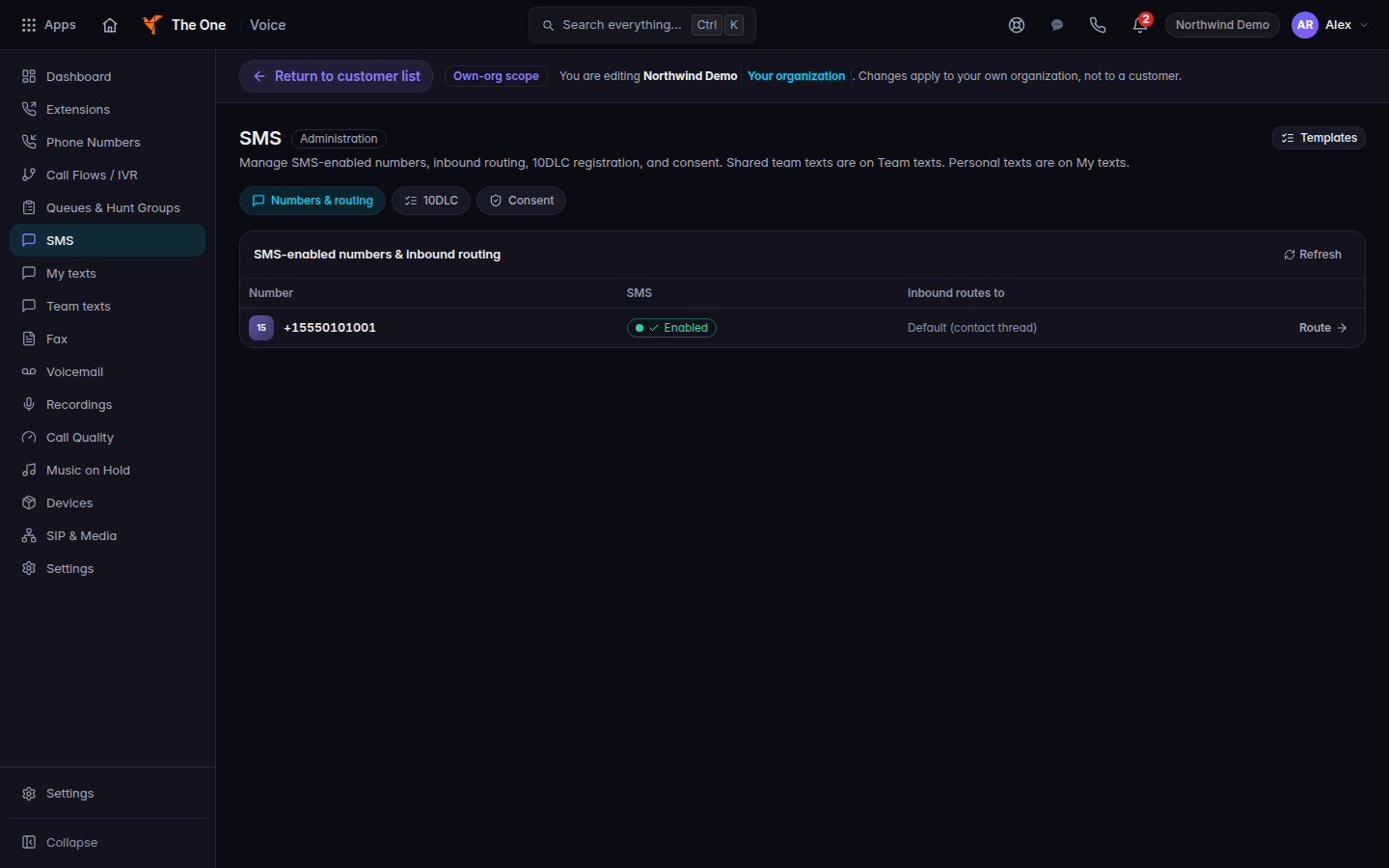
SMS admin, with Numbers and routing, 10DLC, and Consent - Use Numbers & routing to see which numbers can text and where inbound texts go. If none are listed, the empty state says No numbers provisioned yet and Provision a DID under Phone Numbers to enable SMS on it.
- Open 10DLC. The block title is A2P 10DLC registration. Choose Manage 10DLC registration when you need to register a brand and campaign.
- Open Consent for the consent records on this customer.
- On a number's routing drawer, text routing has its own control, Save SMS routing. Save it separately from Save routing.
A tab Held customers appears only when a customer has hit a text limit. The page says those customers reached their text message limit.
If it goes wrong#
- SMS is missing from the menu. Your role cannot view texts. Ask a Voice admin.
- Texts do not arrive. The number is not text-enabled, 10DLC is not registered, or the customer is on Held customers.
- You saved call routing and expected texts to change. Call routing and SMS routing save separately.
What's next#
Was this article helpful?