
Create a ring group
Create a hunt group so one call rings a team together or in order.
Applies to Admin
A ring group rings more than one extension for the same call. In Voice the page is Hunt Groups. The description is Ring groups — distribute incoming calls to teams.
The menu item Queues & Hunt Groups does not open this page. It opens Call Queues. See Create a call queue. Hunt Groups is a separate page for the same customer, and it is not its own menu item. Open it from that customer's Voice pages. If it will not open, your role cannot manage queues.
You can also send a number to a ring group that already exists. On the number, under Inbound call routing, the destination Ring group lists hunt groups.
Create the group#
- Open Hunt Groups for the customer.
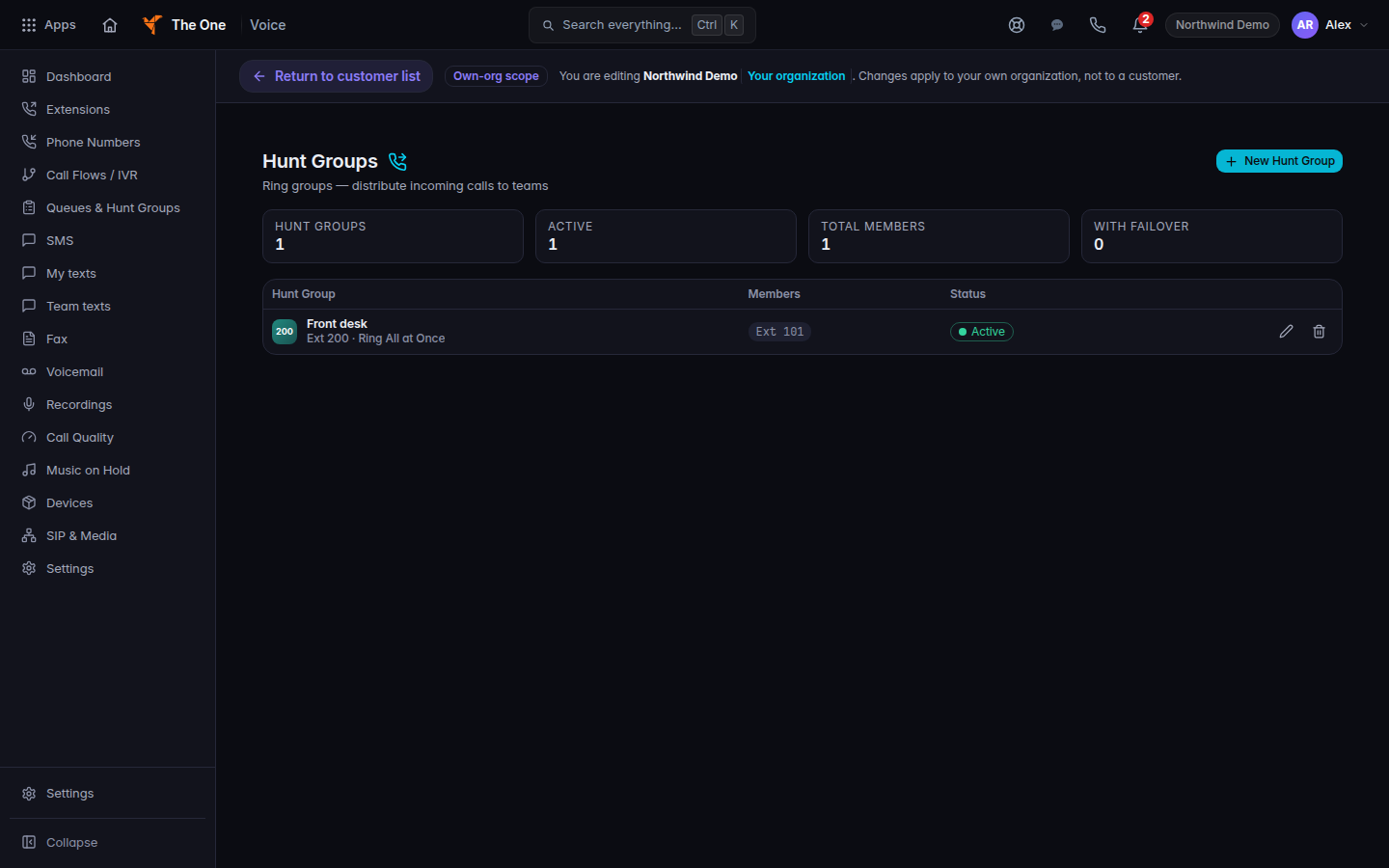
Hunt Groups, described as ring groups, with New Hunt Group - Choose New Hunt Group. An empty list says No hunt groups yet. and Create a ring group to distribute incoming calls to a team.
- Fill Name and Extension.
- Under Ring Strategy, choose one:
- Ring All at Once — all extensions ring simultaneously
- Ring in Order — extensions ring one after another
- Round Robin — distribute calls evenly
- Under Members, add each extension, then save the dialog.
Active means the group is on. Disabled means it is off. Delete hunt group? removes it. That cannot be undone.
If it goes wrong#
- You landed on Call Queues. You used Queues & Hunt Groups. Open Hunt Groups instead.
- The new group does not appear as a Ring group destination. Save the group, then reopen the number's routing drawer.
- A member does not ring. Check the extension number on the member row, and that the group is Active.
What's next#
Was this article helpful?