
Set up a voicemail box
Turn a mailbox on, pick the greeting source, and save it on Voicemail.
Applies to Admin
Voicemail in the staff menu configures mailboxes. The title is Voicemail Boxes. The page says reading messages happens in the desktop app, mobile, CRM, and PSA, not on this page.
Phone in the client portal is not available yet. See Listen to voicemail in the portal.
Configure the box#
- Open Voicemail.
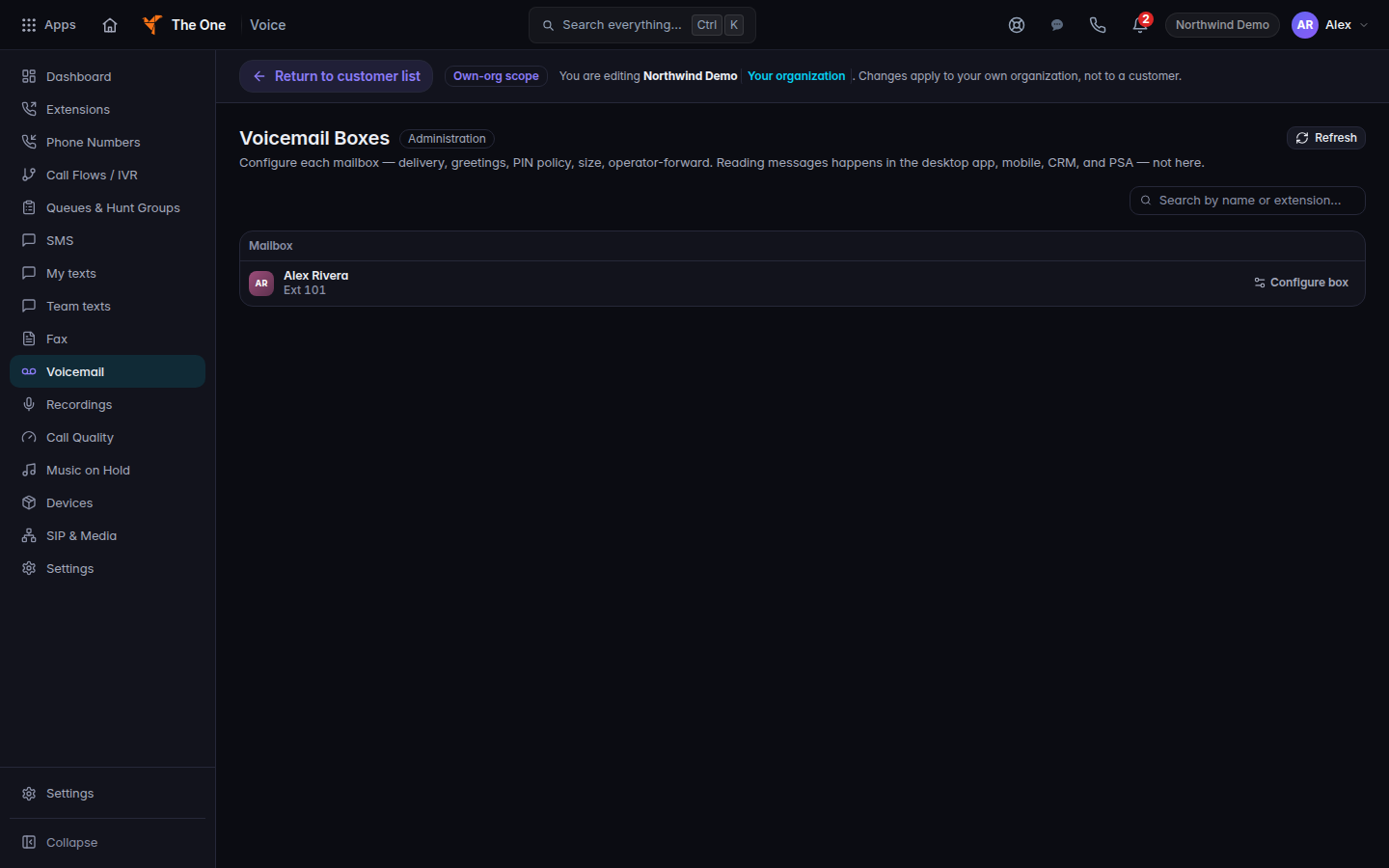
Voicemail Boxes, with a mailbox open - Open the mailbox. The sheet says Voicemail box and the extension.
- Turn Mailbox enabled on. When it is off, callers are not offered voicemail for this box.
- Under Greeting, set Greeting source:
- System default
- From Audio / Greetings Library
- AI text-to-speech
- If you chose the library and it says No greetings in the library yet, add one under Music on Hold, then come back and pick Library greeting.
To have the system read words you type, use AI text-to-speech. See Type a greeting that is read aloud.
An empty list says No voicemail boxes yet and Create extensions to give them voicemail boxes.
If it goes wrong#
- Callers are not offered voicemail. Mailbox enabled is off, or the number's routing never sends the call to voicemail.
- The library greeting will not play. Nothing is selected under Library greeting, or the library is empty.
- You expected an inbox of messages here. This page does not play the caller's message. Use the place the page names, or the portal voicemail page when that person has a line.
What's next#
Was this article helpful?