
Add a deal in your CRM
For clients. Add a deal, move its stage, and mark it lost with a reason.
Applies to Client
A deal is work you are trying to win. The page title is Deals. The line under it is Your pipeline, from first contact to won.
Add it#
- Open CRM, then Deals.
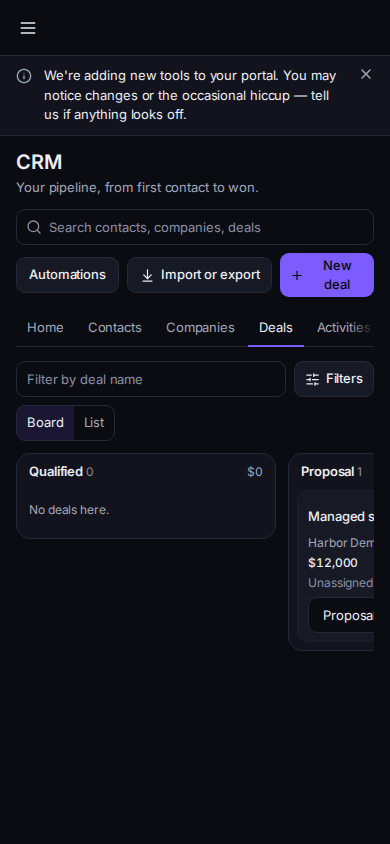
Your deals, Board view, with New deal
Phone-width view of sample records.
- Board is the default. List is the other view.
- Choose New deal. The dialog title is New deal.
- Deal title is required. Set company, contact, Stage, Value (USD), Expected close, Owner, tags, and Notes.
- Choose Save. The deal starts in your first open stage.
- Open the deal and choose a stage name to move it. Moving to a lost stage asks Why was this deal lost? Mark lost needs a reason. Cancel leaves the stage as it was.
No deals yet offers New deal when you can edit. No deals match those filters means a filter is on. Choose Clear filters. Filter by deal name is the search. Couldn't load deals has a retry. This deal was not found means it was deleted.
If it goes wrong#
- Save stays disabled on a lost stage. Fill Why was it lost?
- Deals will show up here once your team adds them. You are read-only.
- Loading deals... does not finish. Leave Deals and open it again.
What's next#
Was this article helpful?