
Add a person in your CRM
For clients. Add a contact from your CRM Contacts list.
Applies to Client
A contact is a person in your CRM. The page title is Contacts. The line under it is The people you do business with.
Add the person#
- Open CRM, then Contacts.
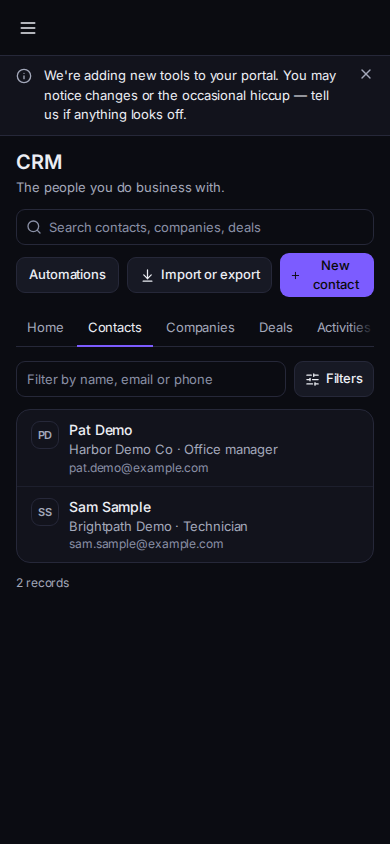
Your contacts, with New contact
Phone-width view of sample records.
- Choose New contact. The dialog title is New contact.
- Fill First name, Last name, or Email. At least one of those is required. Phone, Job title, company, Owner, tags, and Notes are optional.
- Choose Save.
- Open the person for Timeline, Details, and Deals. New deal on that page starts a deal for them.
No contacts yet is the empty list. An admin also sees Import a list. A standard user sees New contact and is told the account admin can import. A read-only person sees Contacts will show up here once your team adds them.
No contacts match those filters means a filter is hiding rows. Choose Clear filters.
If it goes wrong#
- Couldn't load contacts. Retry.
- This contact was not found. It may have been deleted. Back to contacts returns to the list.
- You are in Workspace Contacts. That is a different list. Open CRM, then Contacts.
What's next#
Was this article helpful?