
Review an active alert
Open one alert from Active Alerts and use the buttons on that page.
Applies to Technician Admin
Active Alerts is the list of detections behind your cases. It is a drill-down from Incidents, not a second home queue.
Open one alert to read what fired, then acknowledge it, promote it, or resolve it.
Open one alert#
- On Incidents, choose Active Alerts under Drill-downs. The page title is Active Alerts.
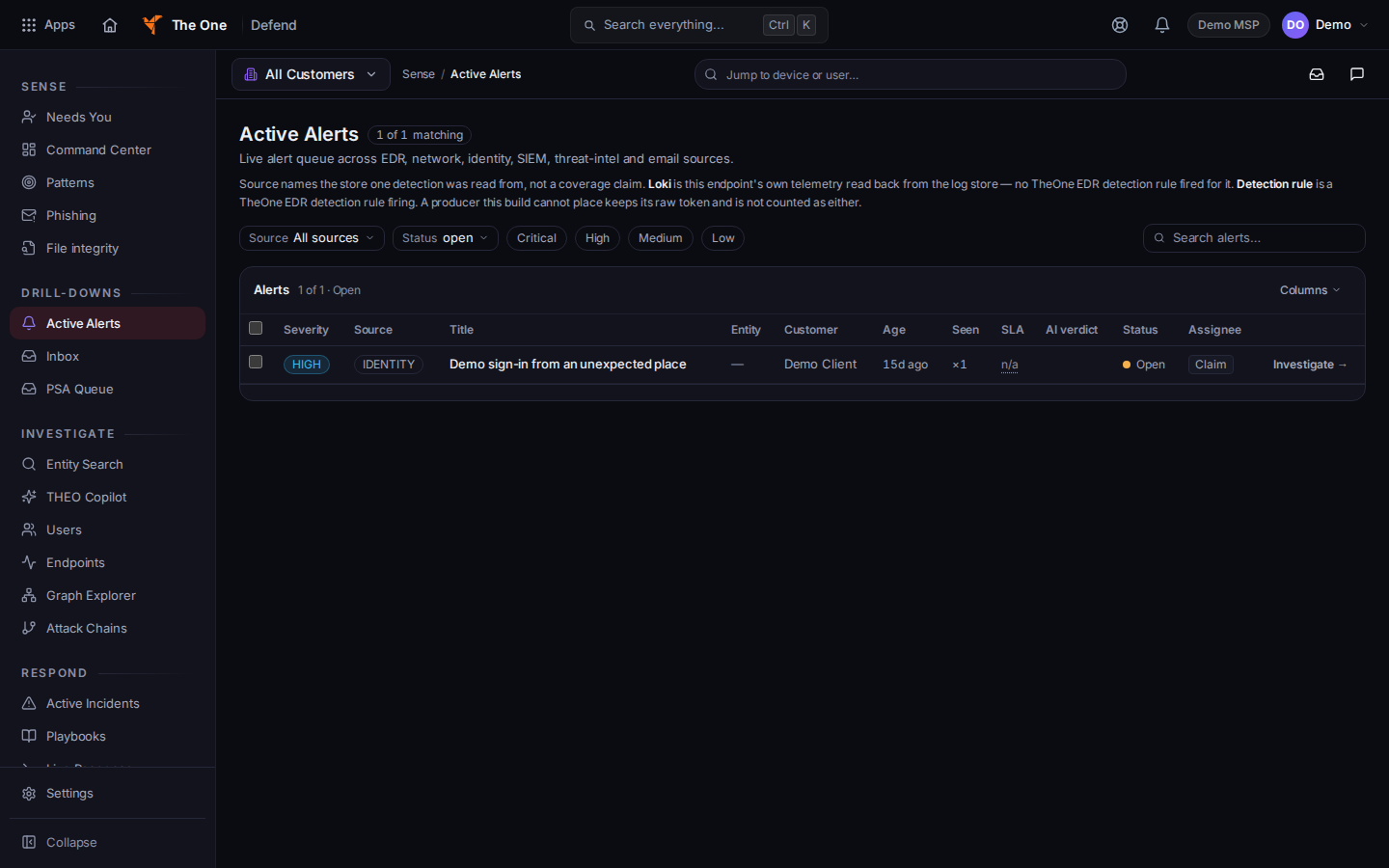
Active Alerts - Open an alert. Back to Active Alerts returns you to the list.
- On an open alert, choose Acknowledge. The button reads Saving… while it saves.
- Choose View incident if the alert is already on an incident. Otherwise choose Promote to incident when you need a case. The button reads Promoting… while that runs.
- Choose Resolve… to resolve the alert, or Mark false positive… when it is a false positive. The dialog title for a false positive is Resolve this alert? Confirm with Mark false positive.
- Choose Isolate… only when that button is shown, and only for the device named on the page. If isolation is withheld, the page says Isolation is not available for this alert.
You may also see Execute Sentinel playbook. While it runs, the label is Queueing…. Read Choose a response in Defend before you confirm any action that changes a device.
A responder tile and an SLA tile can read Reading On-Call while they load. They do not state a response-time promise.
If it goes wrong#
- Failed to load alerts. Reload the list. Do not treat the failure as zero alerts.
- You have view-only access to this alert. You can read it. You cannot acknowledge, isolate, or resolve it.
- On-Call details are not available for your role. Or On-Call details could not be read. The alert is still there. Ask an admin if you need the on-call detail.
- The customer on the alert is not confirmed. Do not type a guessed customer name over the page. Use the identity the page shows.
What's next#
Was this article helpful?