
Add a Shield allow or block
Add a domain to an allow list or a block list at a scope you can edit.
Applies to Admin Technician
Allow & Block Lists holds domain overrides for Shield. You pick Allow or Block, then a scope, then you add a name.
The global list is curated and read-only. You add names at MSP scope or for one client.
Add a name#
- Open Allow Lists or Block Lists.
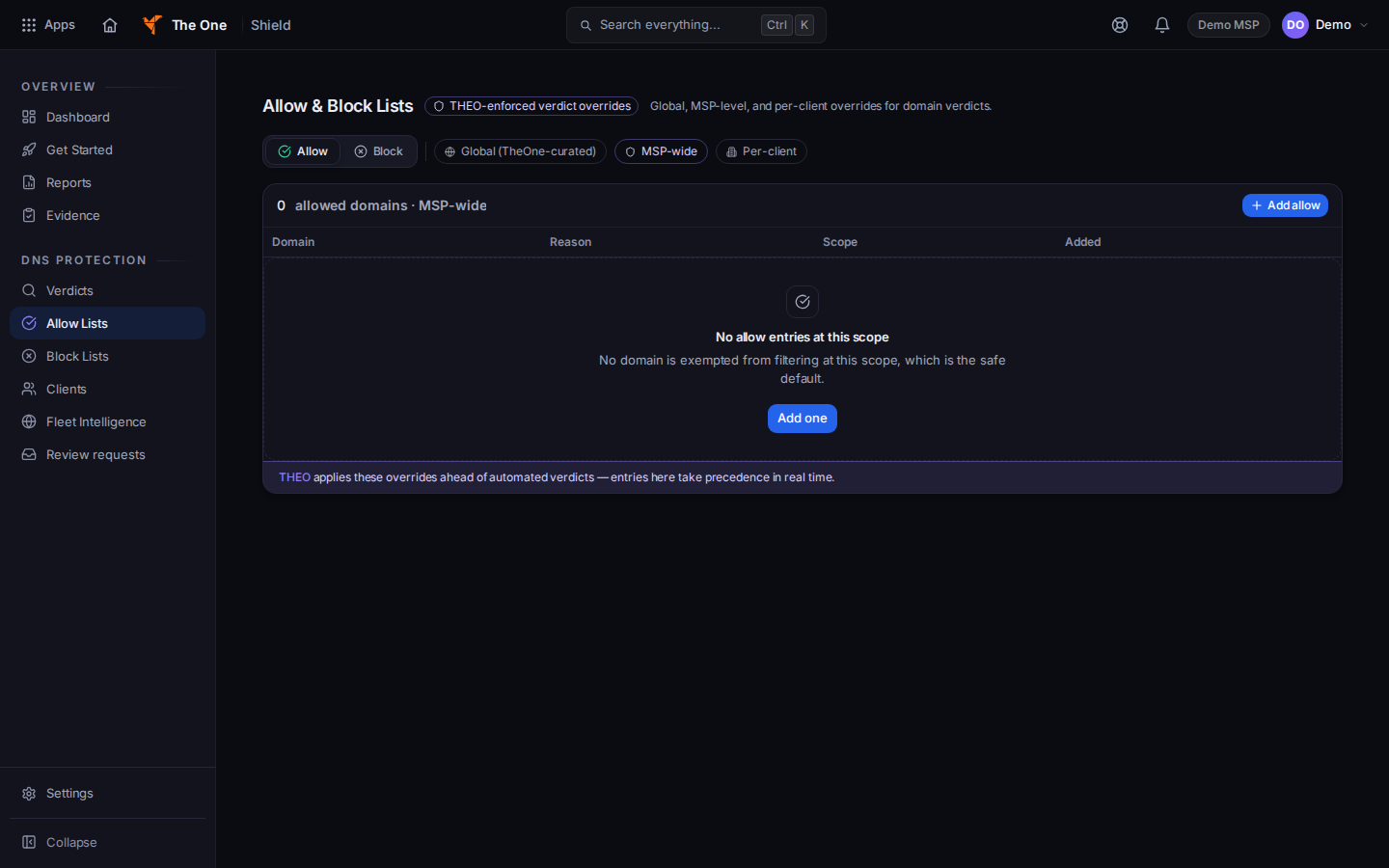
Allow and Block, with the scope chips - Choose Allow or Block.
- Choose a scope: Global (TheOne-curated), MSP-wide, or Per-client. Global shows Read-only. You cannot add a name there.
- For Per-client, pick the client. If none are onboarded, the page says No clients onboarded.
- Choose Add allow or Add block. On an empty list you can choose Add one.
- Enter the domain and a reason, then Save. Choose Cancel to drop the row. While it saves, the button reads Saving….
If it goes wrong#
- No allow entries at this scope or No block entries at this scope. The list is empty at the scope you picked. Add a name, or switch scope.
- No such client. Pick a client that is onboarded.
- Clients failed — retry. Choose the retry control, then pick the client again.
- The domain or the reason is rejected. Read the line under the field and correct it. Do not leave a half-saved row.
What's next#
Was this article helpful?