
Using Hawkeye in Outlook
Check the email you have open with Hawkeye in Outlook on the web, Windows, or Mac.
Applies to Client Technician
Hawkeye is an Outlook add-in that checks the email you have open and lets you report it. You sign in with your Microsoft 365 work or school account.
Your IT team turns it on. If you cannot see it, ask them. Admins use Hawkeye enabled in Defend settings.
This article covers Outlook on the web, Outlook for Windows, and Outlook for Mac.
Check the open email#
- Open Hawkeye.
- Outlook on the web and the new Outlook: select Apps on the message, then Hawkeye.
- Outlook for Windows and Outlook for Mac: on the ribbon select Hawkeye. It may sit under Apps. Before a message is selected, the pane says Select an email to check it.
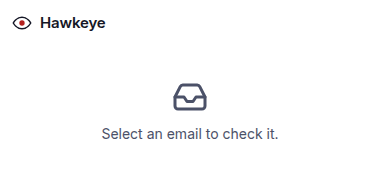
Hawkeye before an email is selected
- Open the email. Do not click links in it yet.
- Wait for Checking this email… to finish. The pane shows one of these headlines:
- Looks safe. The summary says Hawkeye did not find signs of phishing. That is not a guarantee.
- Suspicious: worth a second look.
- This looks like phishing.
- Read Why it looks safe, Why we flagged it, or Why we are confident.
Hawkeye checks the email you have open. It does not scan the whole mailbox.
You can pin the pane so it stays open as you move between messages.
The bottom of a result says: Hawkeye uses AI and can be wrong. If you're unsure about an email, report it to IT.
If lessons are waiting, the pane can show Start training. That opens your portal. It does not change the verdict. See Your security training.
If it goes wrong#
- No Hawkeye button. Your IT team has not turned it on, or it has not reached the mailbox yet. Restart Outlook once, then ask them.
- Not connected yet. Microsoft 365 is not finished connecting. Tell your IT team.
- Not switched on yet. Hawkeye is off for your organization. Tell your IT team.
- Not an email. Select an email. The pane also says Select an email to check.
- Select an email to check it. You have not opened a message yet.
- A Sign in button. Choose Sign in and finish the Microsoft prompt. If it repeats, tell your IT team. In Outlook on the web, a browser that blocks third-party cookies can cause this.
- Hawkeye couldn't check this message. You can still report it. The pane says if it looks suspicious, report it to IT. Choose Try again if you want another check.
- Try again. Wait a moment, then retry.
What's next#
Was this article helpful?