
Filter DNS with Shield
Open Shield and review the dashboard, verdicts, lists, and clients.
Applies to Admin Technician
Shield is DNS filtering for the clients you manage. Staff open it from the Shield app. The first page is Dashboard.
Clients do not get a Shield page. A client address under the portal Shield path sends them back to the portal home. Do not send a client there.
Review filtering#
- Open Shield. You land on Dashboard.
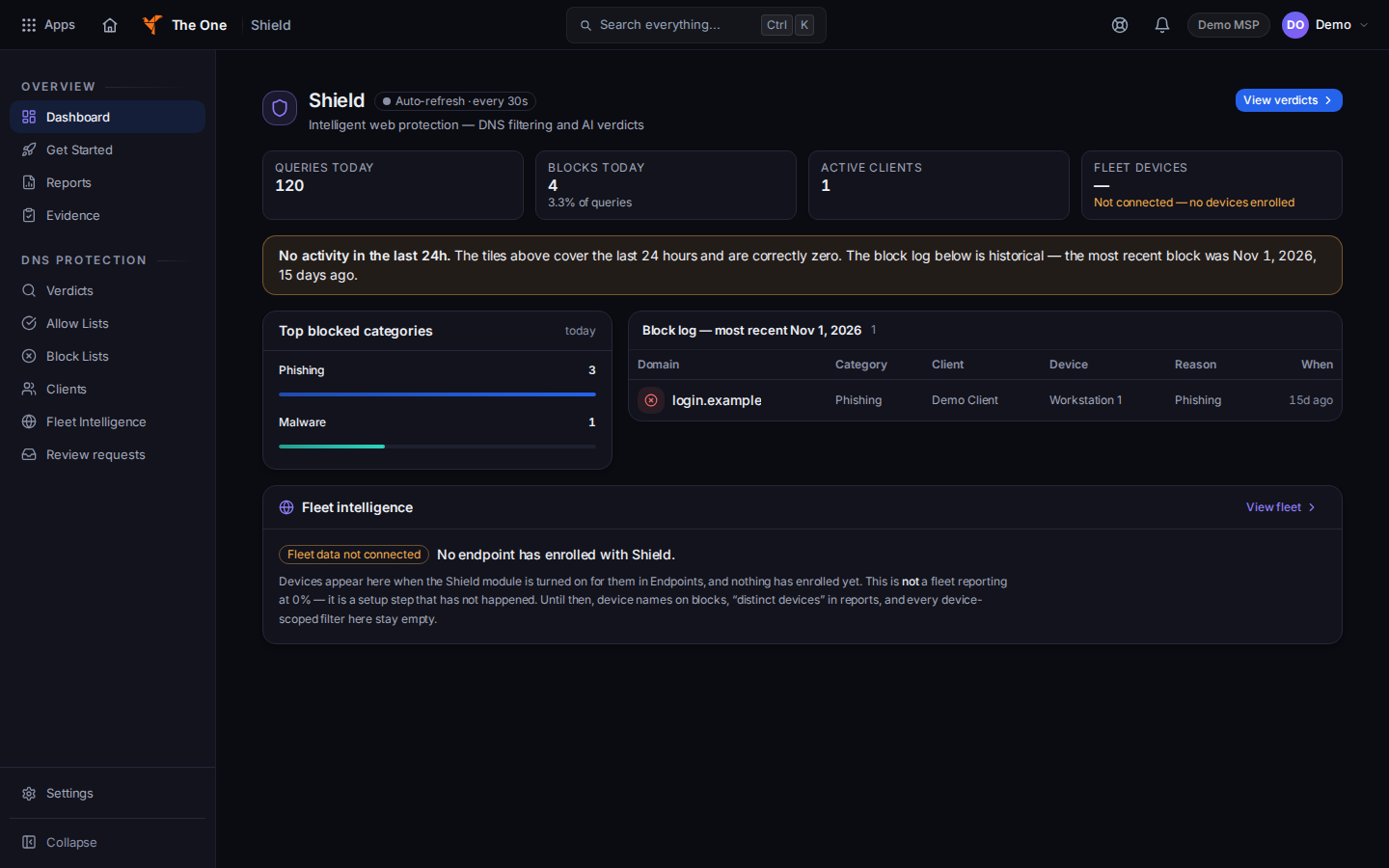
Shield Dashboard - Open Verdicts to see what was allowed or blocked.
- Open Allow Lists or Block Lists. Both open Allow & Block Lists. See Add a Shield allow or block.
- Open Clients to see which clients are included.
- Get Started, Reports, Evidence, Fleet Intelligence, and Review requests are the other items in the menu.
The settings gear is for an owner or an admin. See Change Shield DNS defaults.
Older student-filtering, CIPA, parent, and extension addresses send you back to Shield or to Shield settings. They are not a separate app. Schools remains a settings page. This article does not cover that form.
If it goes wrong#
- A client asks where Shield is in their portal. It is not there. You manage it in the staff app.
- This Shield page doesn't exist. The address is not a current page. Use the menu.
- Shield is missing. Your organization does not include it. Ask an admin.
What's next#
Was this article helpful?