
Escalate an incident to the war room
Open a PSA war room record from a Defend incident.
Applies to Technician Admin
The war room is the incident command record in PSA. Defend does not host that page. From a Defend incident you open it with Escalate to War Room.
The form comes prefilled from the incident. You still confirm the client before you open it.
Escalate#
- Open the incident from Needs you. See Work the Needs You queue.
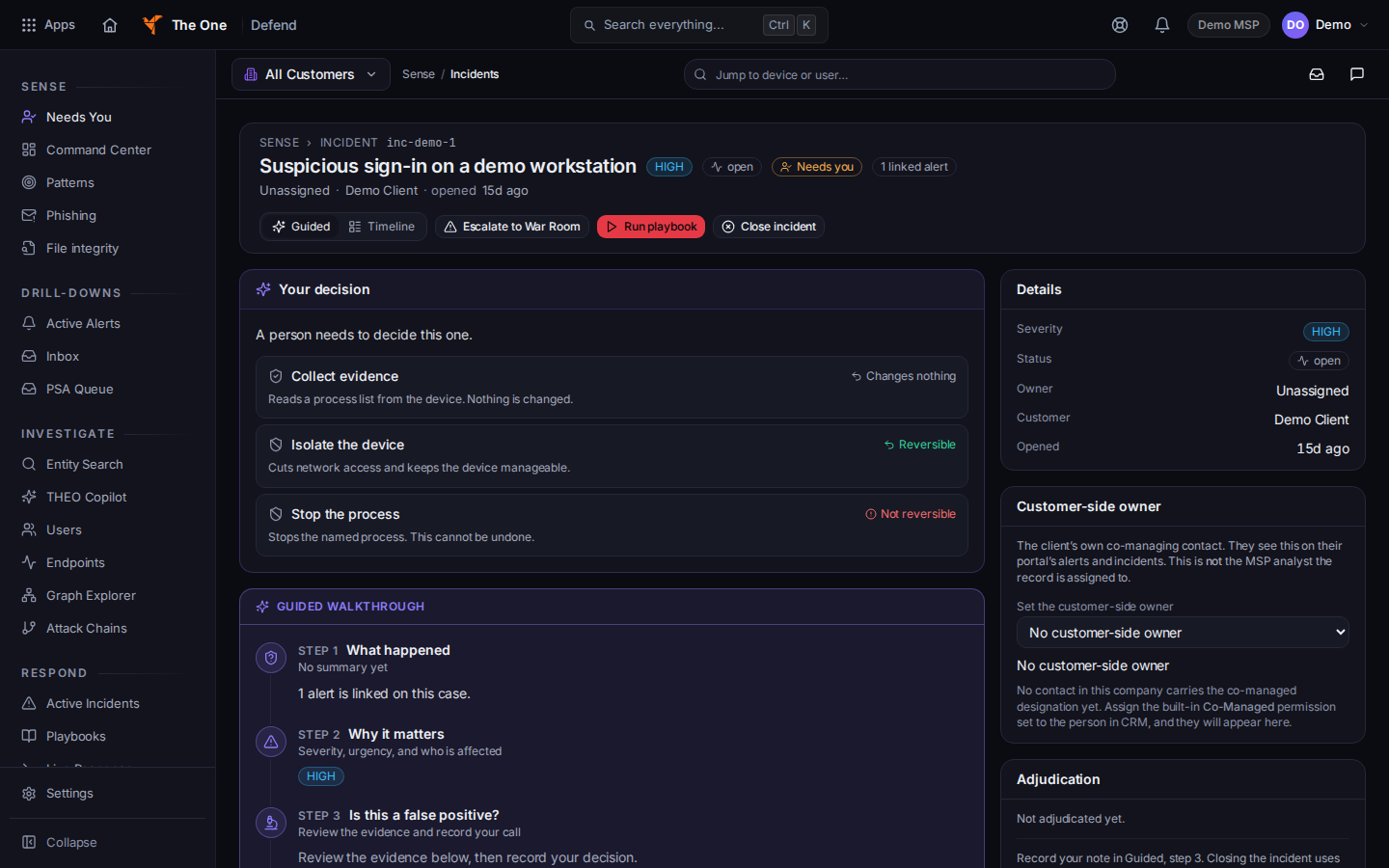
Escalate to War Room on an incident - Choose Escalate to War Room.
- The dialog title is Open War Room Incident. Check Incident title, Type, Severity, and Affected client.
- Severity uses P0 — Critical, P1 — High, and P2 — Medium. Those labels are priorities on the form. They are not a response-time promise.
- Choose Open War Room. While it saves, the button reads Opening…. Choose Cancel to leave.
You can also open War Room from PSA and choose Open Incident there. The page subtitle is Incident command center.
Run playbook on the Defend incident is a different button. It opens Defend playbooks. It does not open the war room.
CyberAssure has its own war room on a CyberAssure incident. That is a different page. See Join a CyberAssure war room.
If it goes wrong#
- Could not open the incident. Check that Affected client is set, then try Open War Room again.
- The client picker does not list the company. Pick the client the incident names, or ask an admin. Do not leave the client blank.
- You do not see Escalate to War Room. You are view-only, or you are not on the incident page.
What's next#
Was this article helpful?