
Defend settings
The Defend settings an owner or admin can open, including Hawkeye and the isolation switch.
Applies to Owner Admin
Defend settings are for an owner or an admin. Everyone else who opens a settings address is sent back to Defend.
The menu only lists pages that are wired. Older addresses that are not in the menu are not part of daily setup.
Open settings#
- Open Defend, then the settings gear. The header reads Defend Settings.
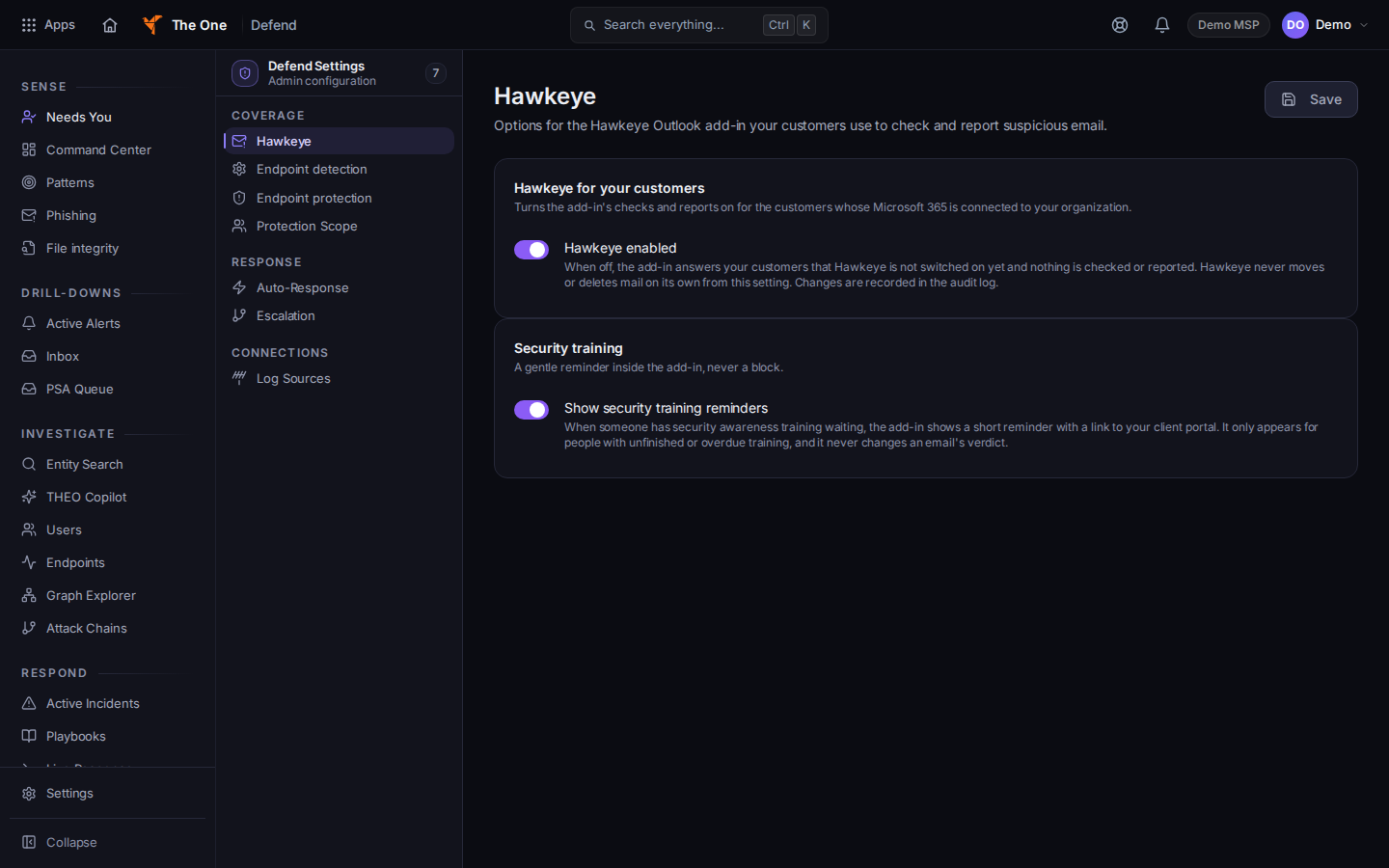
Defend Settings, with Hawkeye selected - Under Coverage, open Hawkeye, Endpoint detection, Endpoint protection, or Protection Scope.
- On Hawkeye, set Hawkeye enabled for customers whose Microsoft 365 is connected. When it is off, the add-in tells them Hawkeye is not switched on yet, and nothing is checked or reported. The same card says Hawkeye never moves or deletes mail on its own from this setting.
- Set Show security training reminders if the add-in should show a training reminder. The reminder does not change an email's verdict. Choose Save.
- Under Response, open Auto-Response. The switch Request device isolation says every isolation waits for a person. Choose Save. Saving the switch does not isolate a device.
- Escalation includes Edit in On Call. That opens On-Call. See Work an on-call incident.
- Under Connections, open Log Sources for the inbound sources the page lists.
Reload on Auto-Response reads the saved switches again.
If it goes wrong#
- You are sent back to Defend. You are not an owner or an admin.
- Could not load the automation config. Retry Auto-Response. Do not assume the switches saved.
- Could not read the On Call escalation policies. Retry Escalation, or open On-Call and read Escalation there.
- A settings page says the values are stored and not enforced. Saving it does not change detection. Those pages are not in the menu. See Behavioral analytics (UEBA) in Defend.
What's next#
Was this article helpful?