
Create a campaign
Build a segment, create a campaign, dry-run it, then send.
Applies to Admin Technician
Campaigns is an announcement or a service update sent to one segment. The menu also has Segments, Customers, Prospects, Templates, Scheduled/Drip, Bad emails, and Forms. Those rows open the same page and scroll to that part.
Create and send#
- Open CRM, then Marketing, then Campaigns.
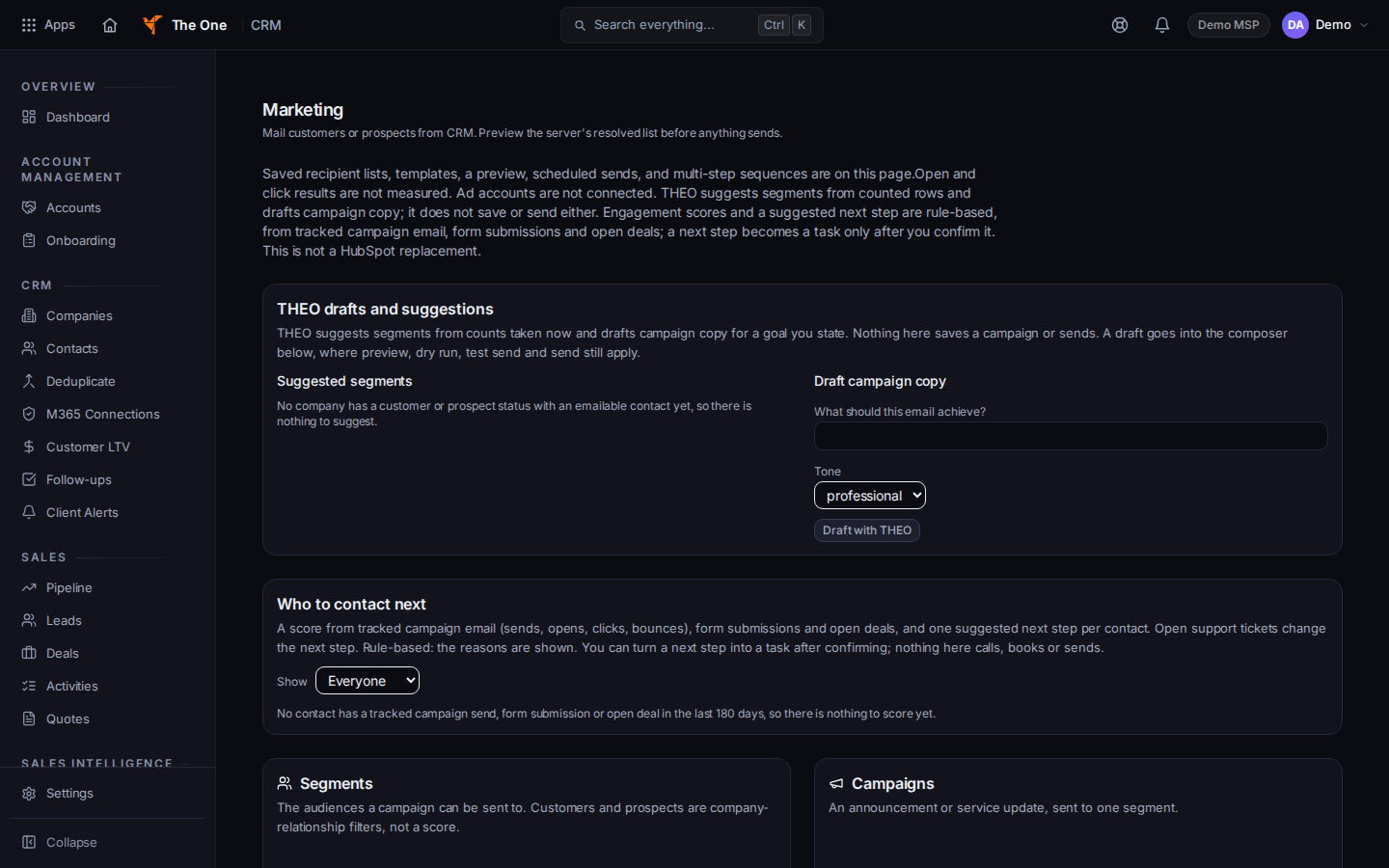
Campaigns, with New campaign
Sample records for Demo MSP.
- If you need a list, create it under segments with Create segment. Customers and Prospects are filters on that same page, not a separate product.
- Under New campaign, set Name, Subject, and Segment. No campaigns yet means you have not created one.
- Choose Create campaign. Then choose Open on the row.
- Choose Dry run. The result says Dry run — nothing was sent.
- Use Preview recipients and Preview email if you want to read it first. Send test sends a test. Send campaign sends to the segment.
- Send at a set time queues one send. The list shows Queued for the stored time in UTC.
- Send failed, Dry run failed, or Test send failed means that step did not complete. Read the message and try that step again.
Could not resolve this audience means the segment could not be counted. Fix the segment before you send. A count of zero sendable contacts means a send would reach nobody.
If it goes wrong#
- Bad emails is the list of addresses that cannot be mailed. Open that row before you blame the segment.
- Forms is a capture form, not a page builder.
What's next#
Was this article helpful?