
Import companies and contacts
Upload a CSV in Integrate so companies and contacts land in CRM.
Applies to Admin Owner
CRM settings does not upload a file. Import / Export there is a history of jobs. The upload is Integrate.
A CSV of companies or contacts can land in CRM. A Microsoft 365 mailbox does not import those records. Mailbox sync logs email. See Connect a mailbox.
Import#
- From an empty CRM dashboard, choose Import a CSV or Open Integrate. Or open Integrate and its import page.
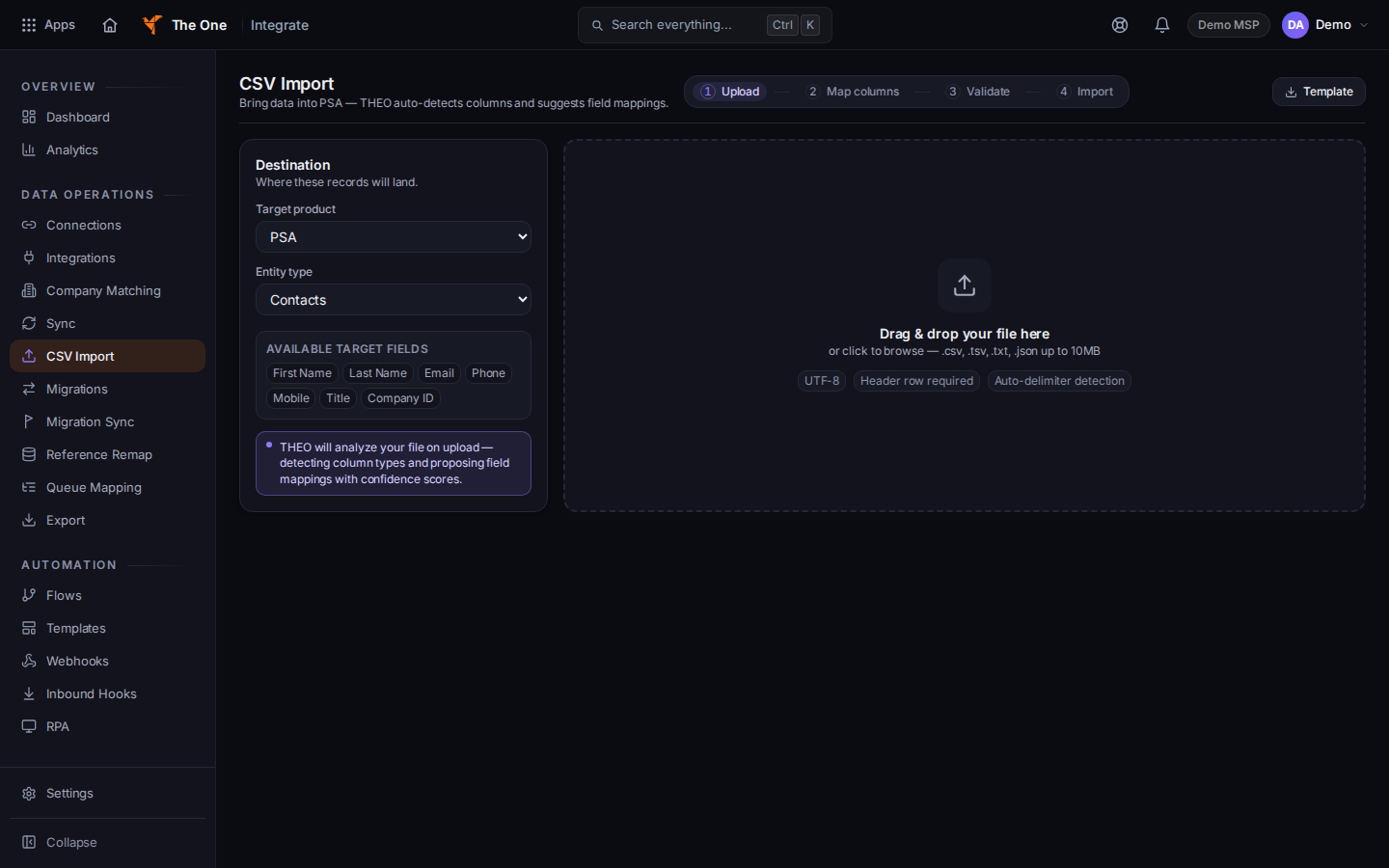
Integrate destination set to CRM
Sample records for Demo MSP.
- Under Destination, set Target product to CRM.
- Set Entity type to Contacts or Companys. The company option is spelled that way on the list.
- Use Template if you want a starter file. Then finish Upload, Map columns, Validate, and Import.
- Start over clears the wizard. Import error names what failed. Fix the file and upload again.
- Open CRM, then Companies or Contacts, and search for a row you imported.
To see past jobs, open the settings gear, then Import / Export. The page title is Import / Export History. It lists Imports and Exports. It does not upload.
If it goes wrong#
- Couldn't load imports or Couldn't load exports. Retry on that message. The history failed. The records may still be in CRM.
- The company option is not Companies. Choose Companys.
- You opened CRM settings looking for an upload. Go to Integrate instead.
What's next#
Was this article helpful?