Require two-step sign-in, allow app passwords, and set lockout and forwarding.
1 min read
Applies toOwnerAdmin
For MSP staff and admins. Sign-in policy is on Security, tab Policy. The card is Sign-in policy. Your IT provider can lock a row. A locked row says Set by a name, then You cannot change it.
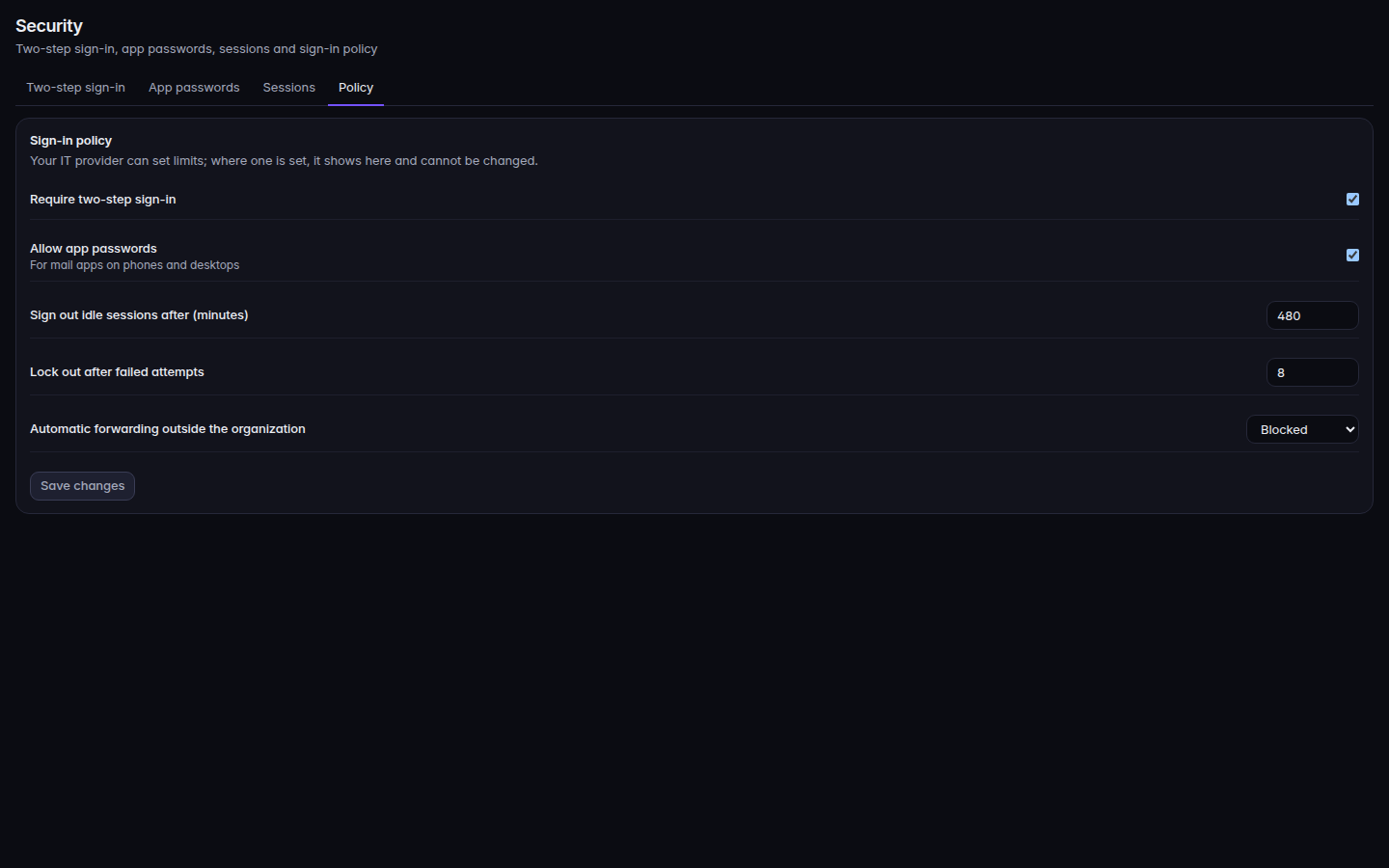
Open Security, then Policy.Sign-in policy, with two-step sign-in and forwardingSign-in policy, with two-step sign-in and forwarding.
Set the rows you need:
Require two-step sign-in
Allow app passwords, for mail apps on phones and desktops
Sign out idle sessions after (minutes)
Lock out after failed attempts
Automatic forwarding outside the organization: Blocked, Admins only, or Allowed
Choose Save changes. Use Discard to drop edits you have not saved.
The other tabs on the same page are Two-step sign-in, App passwords, and Sessions. On Two-step sign-in, filters are All, Not enrolled, Pending, Enrolled, and Exempt. Send reminder asks someone who is not enrolled to finish. Everyone is enrolled means there is nobody left to remind. On Sessions, Sign out ends that session.