Set up the mail app you already have. The Workspace phone app is not in the stores.
3 min read
Applies toTechnicianClient
For people who use mail. The setup page is how mail, and sometimes calendar and contacts, get into an app you already use. Open it from Phone and desktop apps on Home, or Other apps in the menu. The page title is Set up other apps.
A row can say Not yet tested on a device. That means the steps are published and have not been confirmed on a handset. Follow the page, and treat a failure as something to report rather than a step you missed.
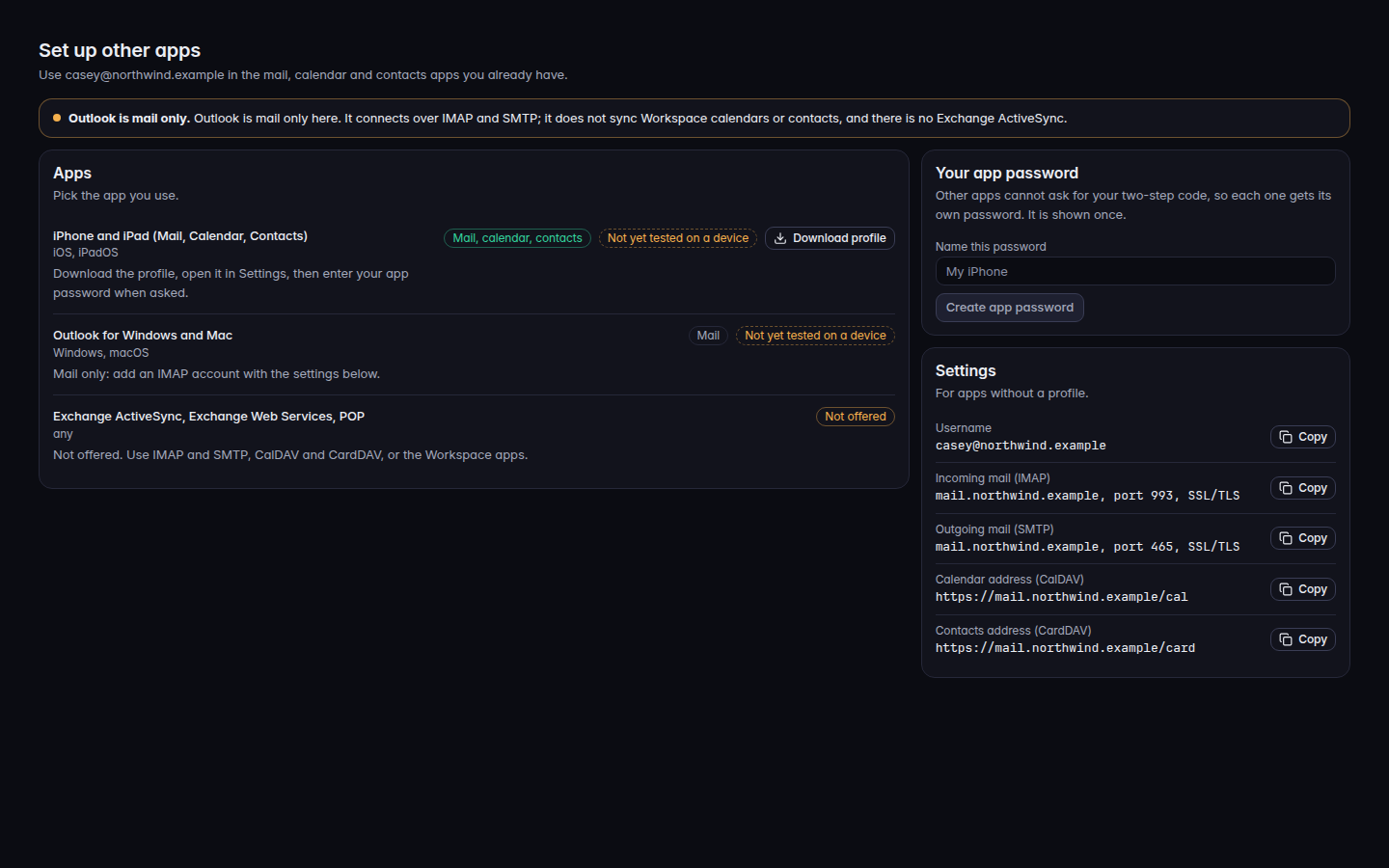
Open Set up other apps.Set up other apps, with the app list and app passwordSet up other apps, with the app list and app password.
Read the warning Outlook is mail only. Outlook does not sync Workspace calendars or contacts, and there is no Exchange ActiveSync.
Pick your app. Download profile is for iPhone, iPad, and Mac. Download settings is for Thunderbird. Android mail uses the settings card. Android calendar and contacts uses a CalDAV and CardDAV app and the addresses on the card, when those addresses are shown.
Under Your app password, enter Name this password and choose Create app password.
Copy the password. The page says Copy it now. You will not see it again.
Open the downloaded file, or enter Username, Incoming mail (IMAP), and Outgoing mail (SMTP) from Settings. Use the app password, not your sign-in password.
The page says Downloaded. Open the file to finish setup. after a profile download.
Exchange ActiveSync, Exchange Web Services, POP is marked Not offered.
The separate Workspace app for a phone is not something you can install from a store. On the staff Downloads page, Workspace under Mobile apps says Not available yet for iPhone and iPad, and Not available yet for Android.
A Workspace desktop app is listed on that same staff page only when a build is published. Download saves the installer. Not yet available means there is no file. No desktop app is published right now means the list is empty. Customers do not get that page. Use Set up other apps instead.
If you do install the desktop app, the first screen says Sign in to open your mail and calendar. Choose Sign in. It says Waiting for your browser... while the browser finishes. Sign-in opens in your browser, where your passkey or verification code is used.
Other mail apps are not available for your account yet. You do not have a seat the server can set up.
Your app settings could not be read. Retry. If it adds Setup is not available yet., setup is off.
Sign in again with two-step verification, then create the password. The app password was refused until you sign in again.
You have the most app passwords allowed. Remove one you no longer use, then try again.
Calendar address is missing. Calendar and contacts addresses appear only when that service is on. The page shows a note instead. Mail settings are still there.